You've got hundreds of pages online. Some rank, some used to, and a good chunk have never brought a single visitor. Which ones do you fix first? Most site owners have no idea, so they rewrite at random or do nothing at all.
That's the problem Rémi's SEO content audit solves in Sedestral. This guide walks through it with real screenshots: the page tracking table (content score, clicks, impressions, CTR, position), the prioritised recommendations, the page details, launching an optimisation from the audit, bulk optimization for up to 100 pages, and reading the content score before and after. One prerequisite: your site must be connected to Google Search Console (see the site configuration guide).
What is Rémi's content audit?
Rémi is the optimization agent of your Sedestral SEO team ("Improve your pages"). While Alya writes new articles (see SEO content strategy with Alya), Rémi works on what you already have:
- Rémi reads your Google Search Console data and picks out the pages that actually get impressions and clicks. Your most important pages get tracked first.
- For each page, he identifies the main keyword, the query that brings the most traffic or impressions.
- He fetches the top 10 Google results for that keyword and compares them with your page: that gives a content score, a technical score and an authority score.
- He classifies the page into an action type based on position, trend, CTR and indexation status. That's what tells you what to do, and in what order.
- Clicks, impressions and position are kept for 180 days, so you can see whether your work paid off.
No 40-page PDF nobody reads: a ranked list of pages with a badge that says "fix this now" or "close to page one, push it".
Where to find the audit
In the left menu of the panel, open Optimization (Rémi's home screen). The first tab, Recommendations, is the audit; Pick a page from your site and Choose from a URL serve when you already know which page to work on.
On this screen you can see "My priority recommendations". Each row is a page: a coloured badge with the action type and a one-line explanation ("Performance drop, Impressions -87%, -2 pos.", "Declining leader, Top 3 but impressions is dropping -74%", "Good opportunity, Position 3, good growth potential"), the title with its main keyword underneath, a Content gauge (52, 33, 58, 81), mini charts for Clicks and Impressions, and two buttons: Details and Optimize. At the top, the "Audits 20/200" quota bar, the Bulk optimization button, a refresh icon and Filters.
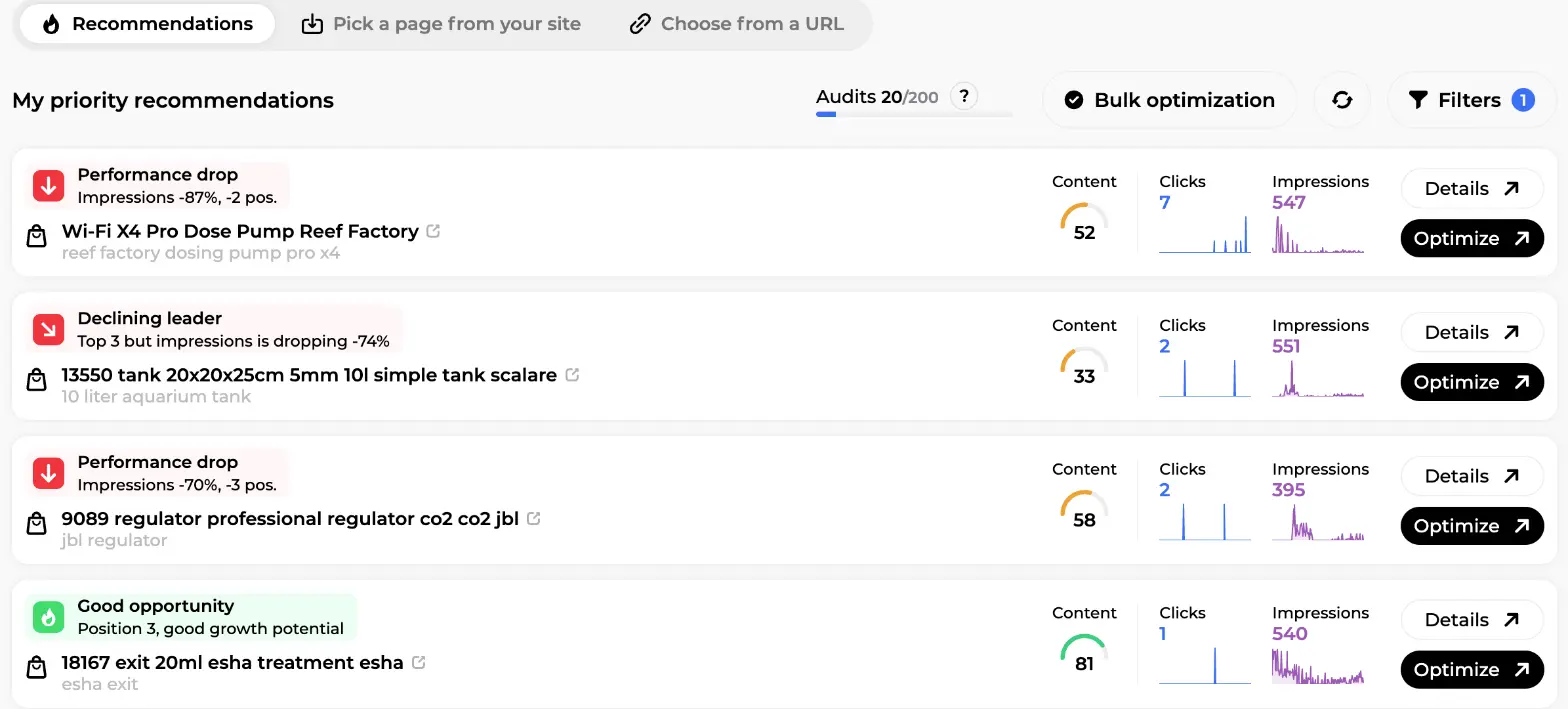
The shopping-bag icon next to each title marks product pages. Rémi audits product pages, categories, blog posts and CMS pages alike.
Reading the recommendations
The badge is the heart of the audit. Rather than leaving you to interpret numbers, Rémi sorts every page into an action type, from most urgent to least:
| Family | Action types | What Rémi suggests |
|---|---|---|
| Urgent | Indexation blocked, indexation error, not indexed, indexation delayed, urgent drop (performance drop), declining leader | Fix the block or re-optimise now, before the position is gone |
| Quick wins | Quick win, declining quick win | Position 10-20 with volume: one optimisation can reach the top 10 |
| Opportunities | Opportunity (good opportunity), few keywords, low CTR | Strengthen content for the top 3, enrich thin pages, rewrite title and meta when people see you but don't click |
| Positive trends | Progressing, emerging | Keep going, add internal links, watch the growth |
| Long-term and maintenance | Long-term opportunity, top performer, maintenance, low priority | Plan a deeper optimisation later, or leave the page alone |
Indexation issues come first: an unindexed page brings zero traffic whatever its score. Then quick wins, the best effort-to-result ratio.
Filters and quota
Click Filters to narrow the list: position, clicks, impressions, URL path (for example /blog/), page type, action type, plus checkboxes to exclude recently optimised or processed pages. Filters are saved per site and reflected in the URL, so you can share "all quick wins not handled yet" with a colleague.
The "Audits" counter is the number of page analyses in your plan. Rémi refreshes on his own; the refresh icon re-analyses all visible pages in 2 to 5 minutes and consumes quota, so don't use it more than every three to four weeks.
The page tracking table
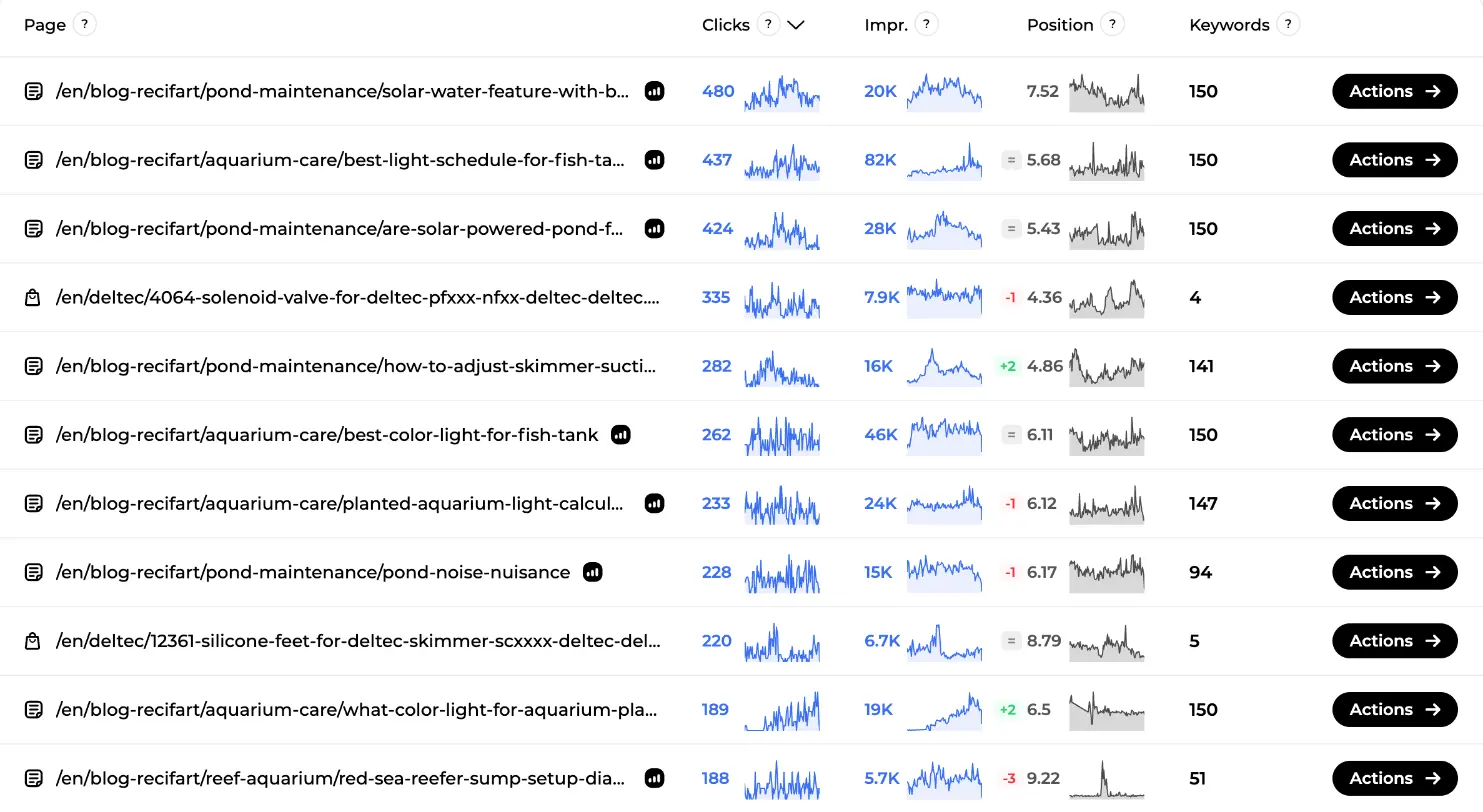
To see the raw performance of every page, open Marc's SEO Visibility screen (Results & insights in the left menu) and its My pages tab: the same Search Console data Rémi uses, as a table.
On this screen you can see one row per URL with a page type icon, Clicks (480, 437, 424...) with a sparkline, Impr. (20K, 82K, 28K), Position with a variation chip (=, -1, +2, -3) and trend line, the number of Keywords the page ranks for (150, 4, 141...), and an Actions button.
Click a row for the keyword breakdown. On this screen you can see every query the page appears for, with Clicks, Impr., CTR (4.3%, 4.0%, 1.6%...) and Pos. with a mini chart. Position 6 with a 1.1% CTR means people see you and skip you: a title and meta problem, not a content problem, which Rémi flags as "Low CTR".
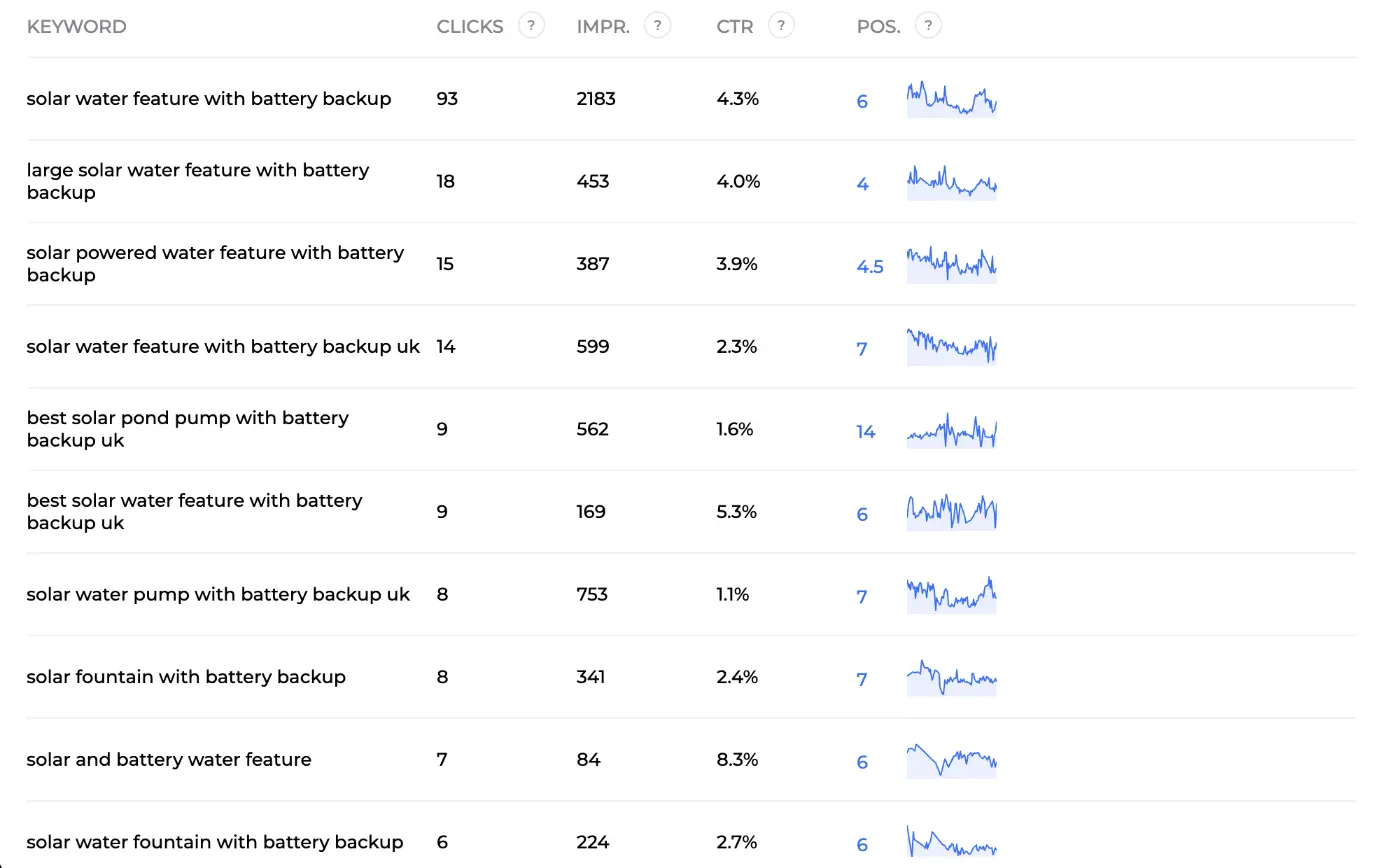
The same keyword list opens from the audit via the "Details" button on a page's position chart. For the full tour of Marc's screens, read the SEO analytics guide.
Page details: the three SEO pillars
Back in the Recommendations tab, click Details on any card. On this screen you can see the "Performance drop" badge, the page title and clickable URL, and three scores top right: Authority 6, Technical 95, Content 52, with the favicons of the top 10 competitors and a Competitors button that opens the full SERP comparison (positions, scores, word counts, authority, backlinks). Below, Rémi's analysis sums it up in plain English: the page ranks fourth with clicks up sharply, the content score is 52 against 73 for competitors, the title and description could lift CTR, links would help. "My observations by SEO pillars" then lists the concrete points: "Optimization recommended, -39 compared to max", "Content needs improvement", "CTR needs optimization". At the bottom, a Mark as processed button.
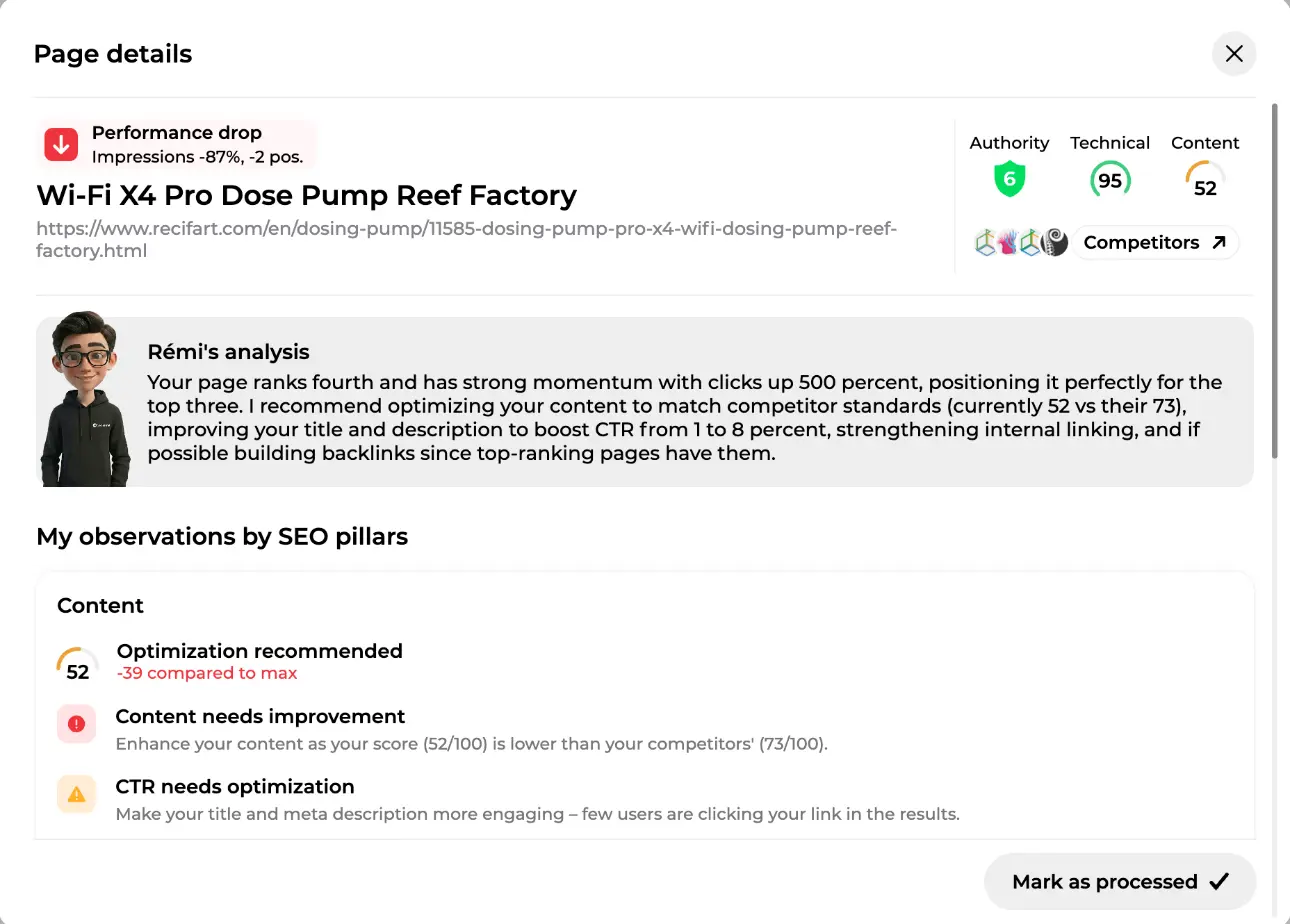
Why three pillars? A low ranking rarely has a single cause:
- Content: score against competitors, length, headings, images, title, description, readability, with an Optimize content button.
- Backlinks (authority): backlink and domain authority gap versus the top 10. If this is the weak pillar, content alone won't fix it; that's Maya's job (see backlink campaigns).
- Technical: speed, HTTPS, missing alt tags, internal and external links, structure, each with an impact level (critical, high, medium, low). Nox's technical audit covers the site-wide side.
Further down, three charts show clicks, impressions and position over 180 days. Once you've acted on a page (even outside Sedestral), click Mark as processed: it gets a dated badge and can be hidden with the matching filter.
Read the pillars before you optimise. A page with a content score of 81 and an authority score of 6 needs links, not another rewrite.
Pro Tip
Audit Before You Create New Content
Run Nox's technical audit on your existing site before asking Alya to publish new pages, fixing crawl issues first means your new content ranks faster.
Launching an optimisation from the audit
Found a page worth fixing? Click Optimize on its card (or Optimize content in the details). Rémi imports the page and opens the Optimize a page window. On this screen you can see the Main keyword selection block: when Search Console has data, Rémi proposes up to four keywords with position, clicks and impressions; here there was no suggestion, so the keyword detected by the audit, "reef factory dosing pump pro x4", is pre-filled under "Enter my own main keyword". Below, "Your page details" shows the editable Title and Description, and a Show page content button to check the imported text.
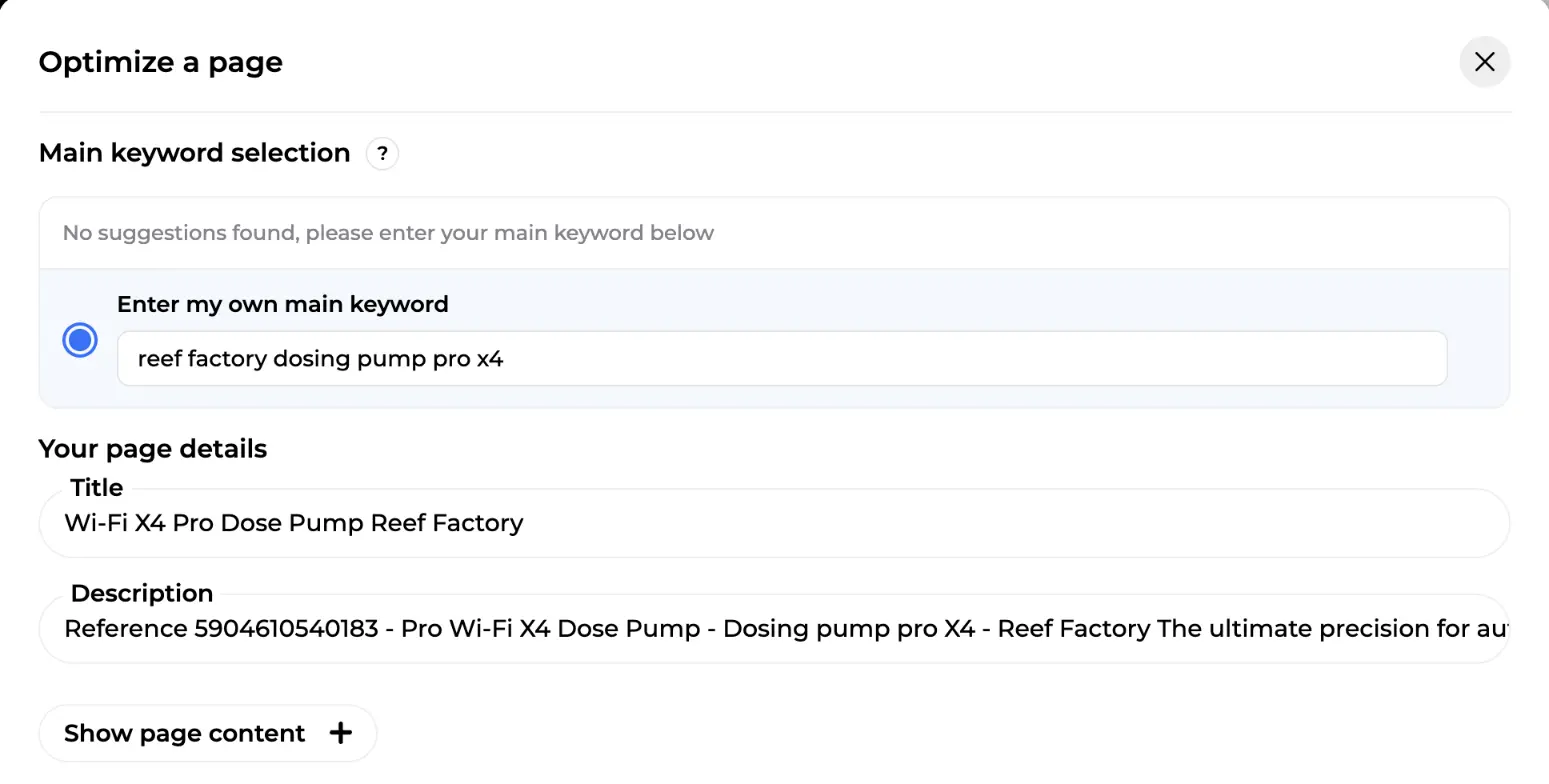
The keyword is the decision that matters: it defines which ten competitors Rémi analyses. Pick a query you're already visible on (position 5-30), not a dream keyword.
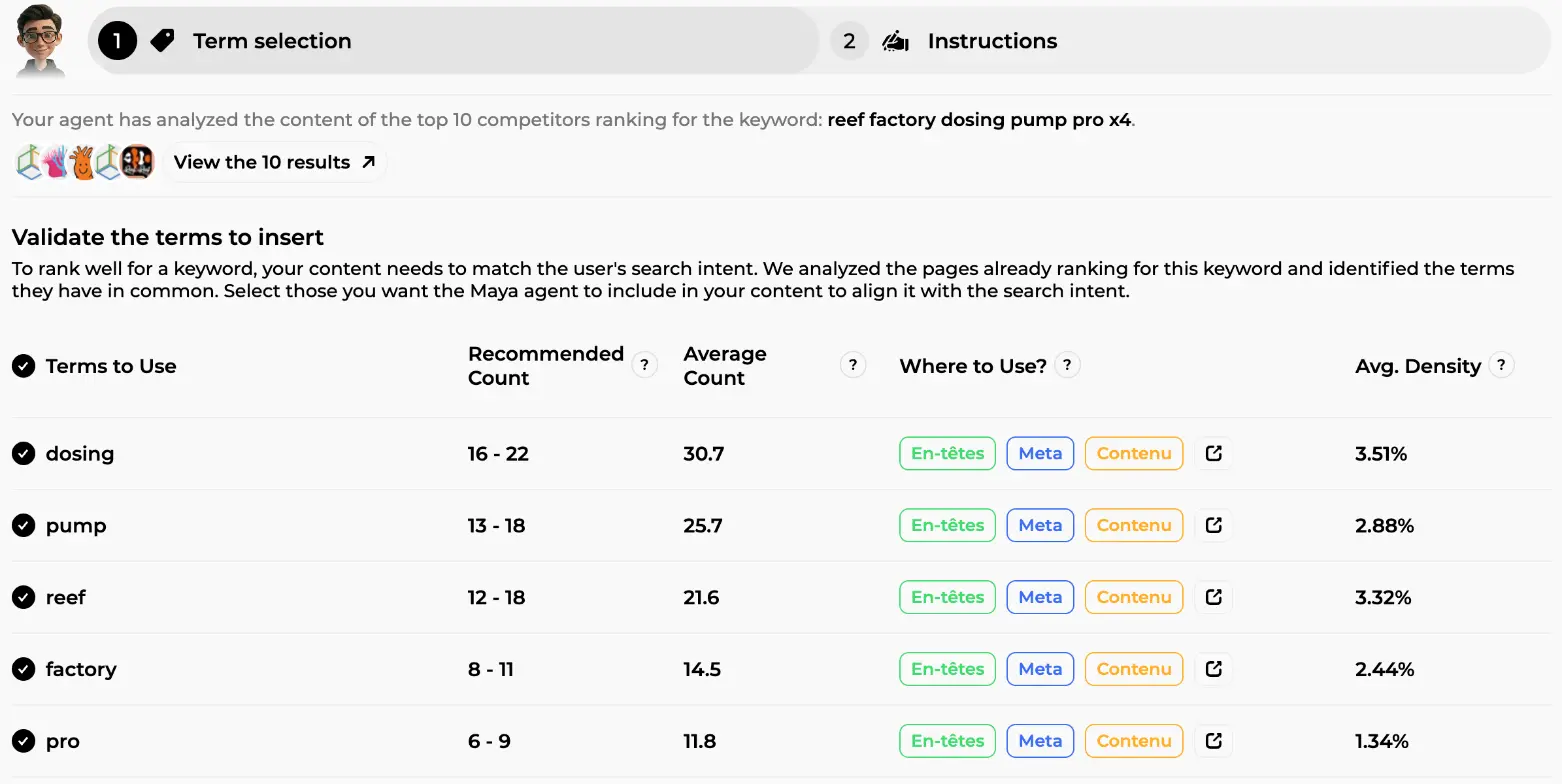
Click Optimize. Rémi analyses the top 10 and, for blog posts and CMS pages, shows a two-step wizard: Term selection then Instructions. On this screen you can see the competitor favicons with a View the 10 results button and the table "Validate the terms to insert": each term (dosing, pump, reef, factory, pro) with a Recommended Count (16-22, 13-18...), the Average Count among competitors, Where to Use? tags for headings, meta and body, and the Avg. Density. Untick anything that doesn't fit your page. For product pages and categories, Rémi skips this step and rewrites directly (an advanced mode in the site settings adds an instructions step).
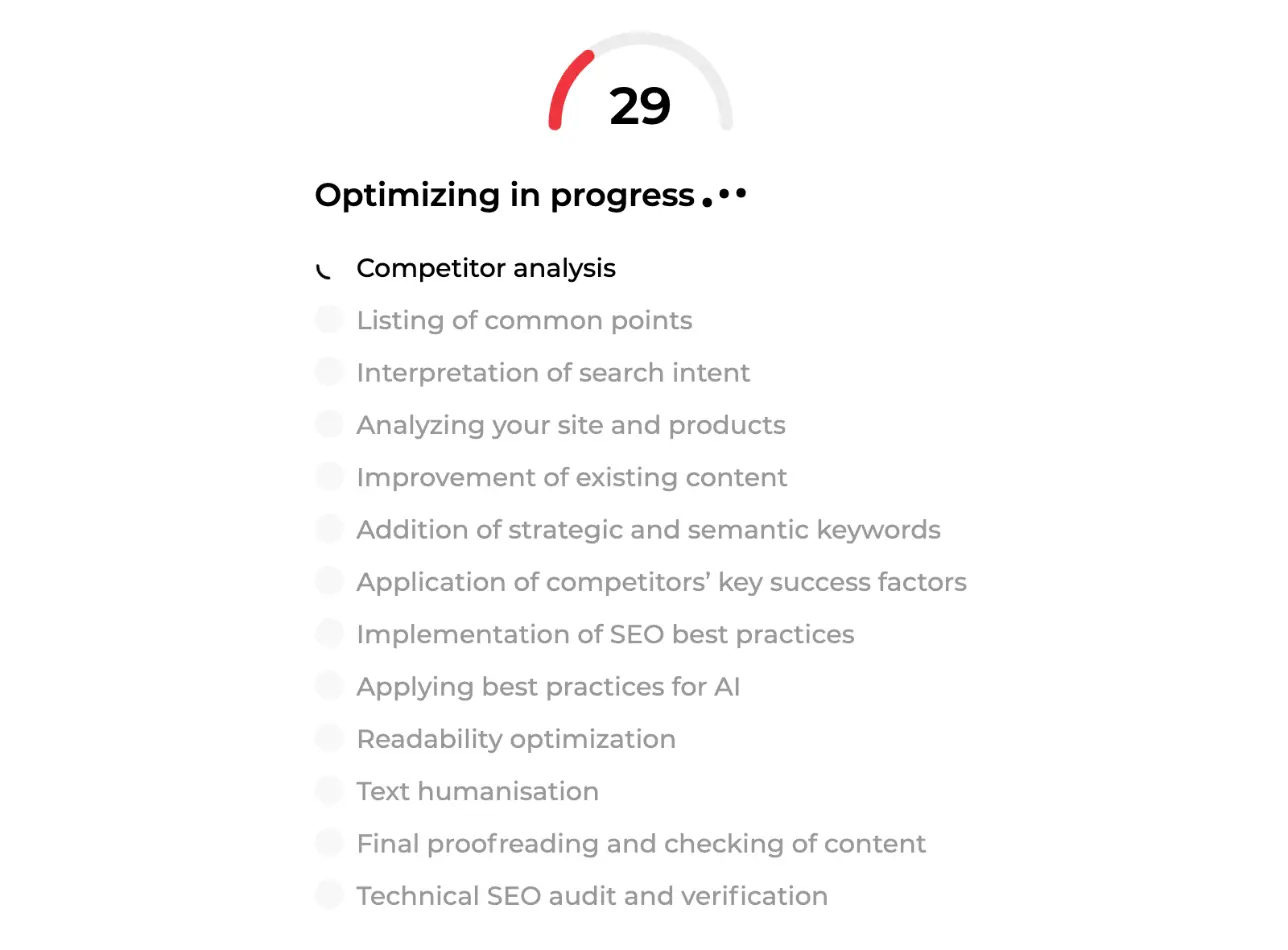
Then Rémi gets to work. On this screen you can see the content score gauge at 29 and the "Optimizing in progress" checklist: competitor analysis, common points, search intent, your site and products, improvement of existing content, strategic and semantic keywords, competitors' key success factors, SEO best practices, best practices for AI, readability, text humanisation, final proofreading, technical SEO check. Count on a few seconds to about six minutes depending on length.
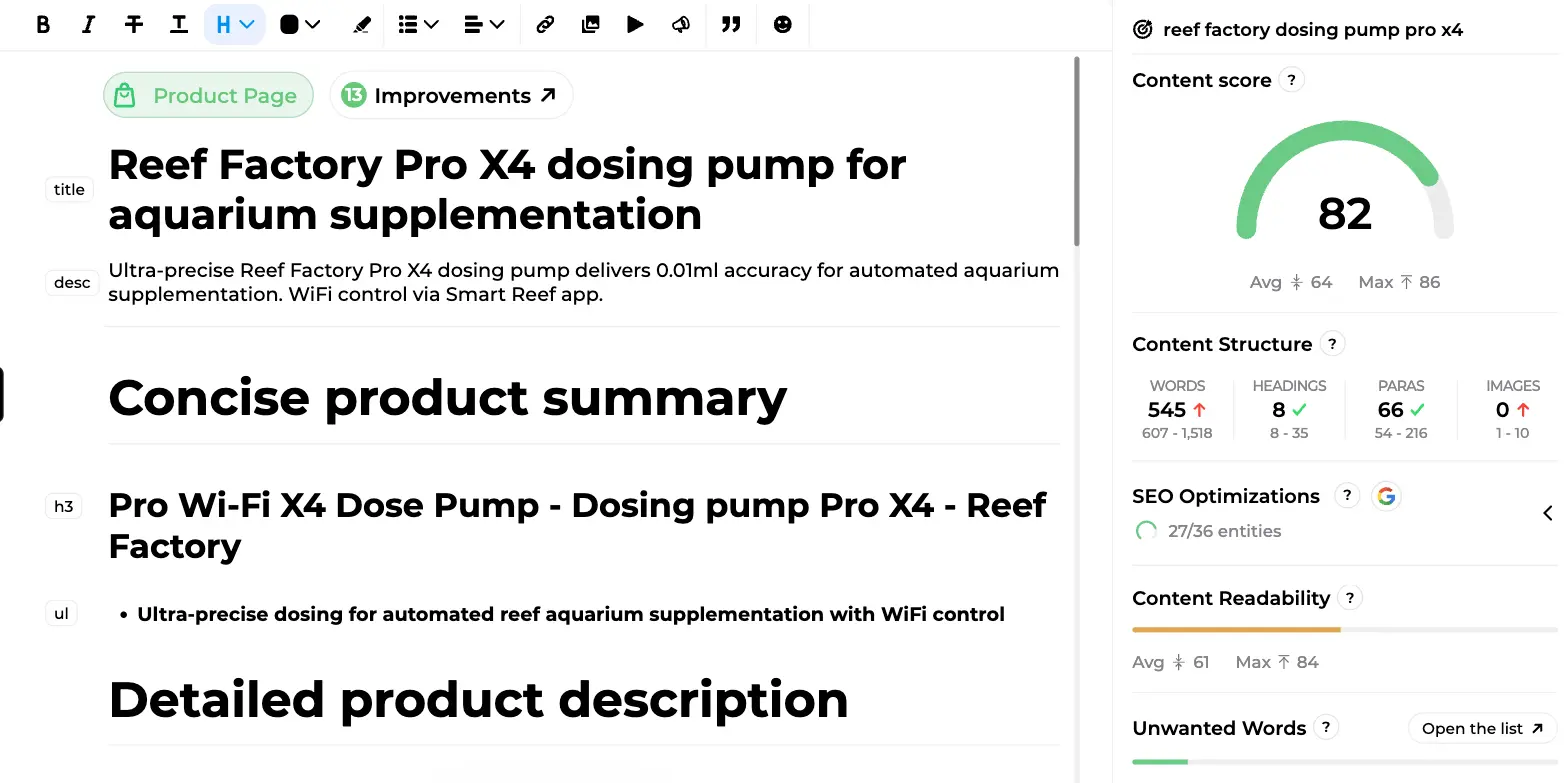
Once done, the page opens in the editor. On this screen you can see the "Product Page" badge, a "13 Improvements" pill, the rewritten title and meta description, the new headings ("Concise product summary", "Detailed product description"), and on the right the Content score panel at 82. Nothing is published yet: you read, you tweak (the Edit with AI pill takes plain-language requests, with a word-by-word diff and undo per change), then push the page back to your CMS with "Export article". The original version is saved in the history first.
Guidelines, review step, product pages, categories and page builders are covered in the dedicated guide:
See the full optimisation flow
Bulk optimization: up to 100 pages in one go
Twenty quick wins in the list? Click Bulk optimization in the header of the Recommendations tab. Every card gets a checkbox (pages without a detected main keyword or with an unfinished analysis are greyed out, with the reason). A floating bar shows the selected count, Select all for every eligible page on screen, and Optimize.
The "Optimize multiple contents" window sums things up before you commit:
- the optimizations remaining on your plan (beyond it, only the first pages start),
- the pages to optimize, each with an editable main keyword,
- an optional common instruction (1,000 characters) for the whole batch: "do not modify the prices", "add a call to action at the end".
Click Launch optimizations. The batch runs in the background, one page at a time per site, and the floating bar shows "X/Y optimized · Z failed". View queue lists the page in progress, the pending ones in order and the finished ones with their state. Cancel queue stops whatever hasn't started; a credit is only consumed when an optimisation begins, so cancelled pages cost nothing. Limits: 100 pages per batch, one batch at a time per site. A failed page doesn't block the rest; relaunch it individually.
Every finished page lands as a draft in the "List of optimizations" tab. Nothing goes live on its own: you review, then export to your CMS. Rémi does twenty rewrites overnight, you do twenty ten-minute reviews.
Reading the content score before and after
The content score is a mark out of 100 comparing your page with the top 10 for its keyword on nine criteria: semantic terms in the body (47 points, the biggest chunk), terms in headings, terms in title and meta description, number of headings, paragraphs, images, word count, readability and stop words. Green from 70, orange between 32 and 69, red below. The same panel drives Alya's articles, see the AI article writing guide.
On this screen you can see the panel after optimisation: the gauge at 82, above the competitor average (64) and close to the maximum (86). Under Content Structure, four counters against the competitor range: 545 words with a red arrow (range 607-1,518, still a bit short), 8 headings and 66 paragraphs in the green, 0 images in the red. SEO Optimizations shows 27 of 36 entities covered, then Content Readability and Unwanted Words bars.
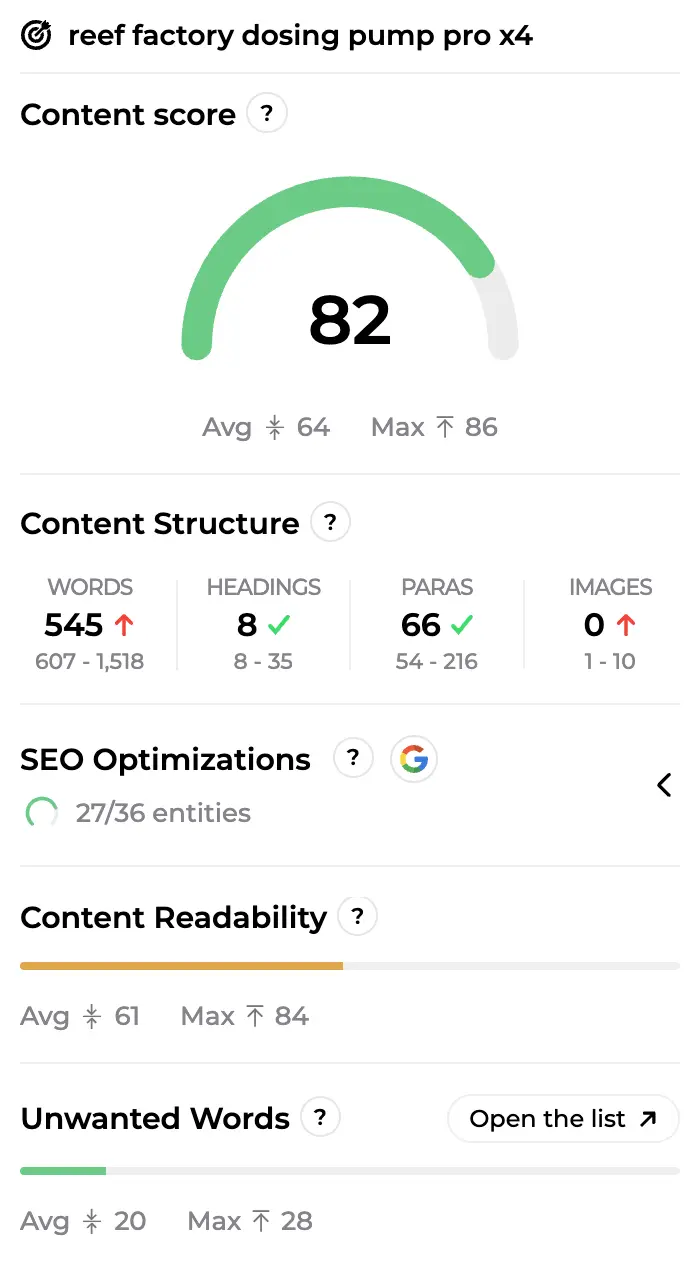
The score went from 29 to 82 in one pass, and the panel still tells you what's left: a product image, a hundred more words. You don't need 100: between 70 and 85 you're at competitor level, beyond that you risk over-optimising. Publish, then let the audit measure the effect on clicks and position.
A realistic monthly routine
Block thirty minutes at the start of each month:
- Open Recommendations, filter on urgent action types, deal with indexation issues and performance drops.
- Filter on Quick win with "exclude pages marked as processed" ticked, select the batch, launch a Bulk optimization.
- Over the following days, review the drafts, publish, Mark as processed.
- Four weeks later, check the trends in My pages. A page that moved from "Quick win" to "Top performer" is your proof of return.
Two or three pages a week is enough to see movement within four to eight weeks. And a competitor overtaking one of your top pages shows up as "Declining leader" before the traffic disappears.
In short
Rémi's content audit turns Search Console data into a ranked to-do list: every tracked page gets a content score, an action type (urgent, quick win, opportunity, long-term) and a plain-language analysis by pillar. The tracking table gives clicks, impressions, position, CTR and keywords per page. From any card you launch an optimisation, validate the terms and get the rewritten page in the editor with its new score. Bulk optimization runs up to 100 pages through a queue and delivers drafts for you to review. You stay in control, and the audit measures the result. Sedestral has a free plan, then paid plans from €119 per month (shown in your local currency), with 30% off on annual billing (pricing).
Let AI Handle Your Content Publishing
Alya researches keywords, writes and publishes content directly to your CMS, WordPress, Shopify, Wix and more, on autopilot.