Some SEO jobs don't need a full project. Check whether a keyword is worth an article, spot two pages fighting over the same query, fix the ALT tags on a batch of product photos. Opening a separate tool for each and pasting results back into your CMS is where the afternoon goes.
Sedestral bundles these quick jobs into the Quick access section of the panel: the Toolbox (keyword research, keyword suggestions, cannibalisation detection) and Edit images (ALT tags and AI retouching for product images). Here's what each screen shows, what the numbers mean, and how to plug the results into the rest of your SEO work.
Where the Quick access tools live
In the left menu, under the six agents of your SEO team, sits a Quick access block with Toolbox and Edit images. Neither replaces an agent: Alya still builds your content strategy, Rémi still runs the content audit. The Toolbox is what you open when you want an answer in a minute. Three tabs: Keyword Research, Keyword Suggestions and Cannibalization.
Keyword research: is this keyword worth it?
The first tab opens on a single search field. Type a product, a service, a topic, anything your customers might type into Google, then click Search.
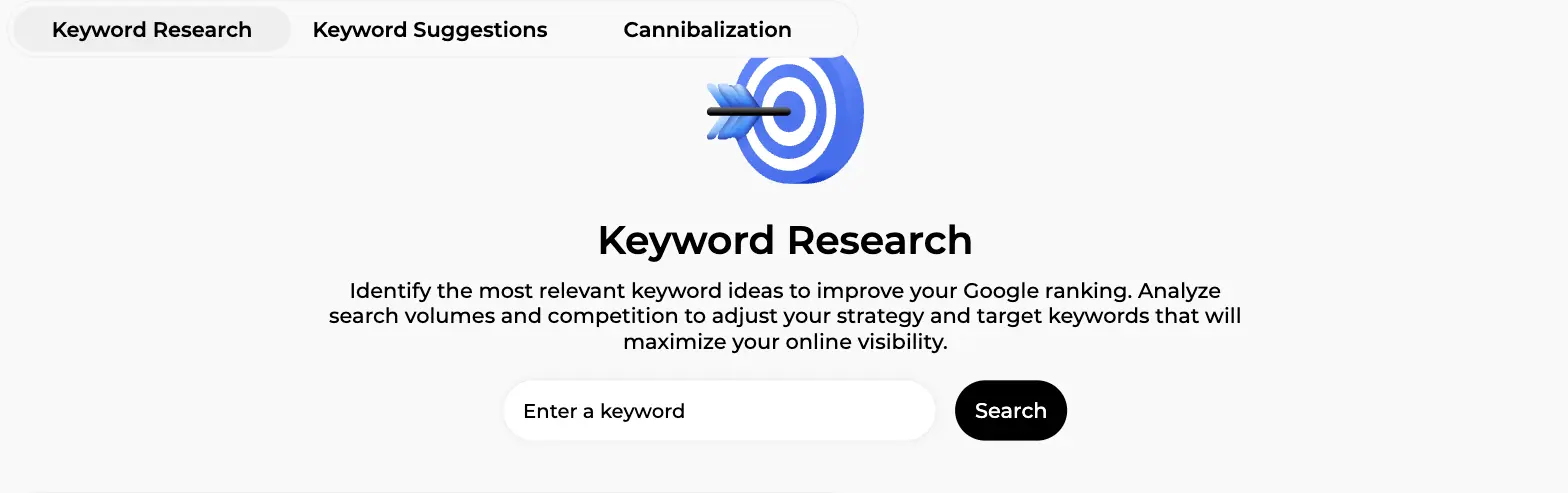
Before the results load, a small window asks you to pick a search mode:
- Blog (default): favours informational keywords, the ones that feed guides and blog posts.
- Commercial: favours commercial and transactional keywords, the ones that feed product and category pages.
Pick the one that matches what you plan to write, click Save, and the mode appears as a badge next to your keyword.
What the results table shows
Every keyword idea comes back as a row with the same reading grid, shared with the Keyword Suggestions tab:
| Column | What it is | How to read it |
| Volume | Average monthly Google searches over the last 12 months, with a trend chart | Demand, and whether it's seasonal, growing or fading. "No data" means Google reports no volume for that exact phrasing, common on specific product queries. |
| KD (competition) | Keyword difficulty: Low / Medium / High plus an index from 0 to 100 on a colour gauge | Green is favourable, red means established sites already own the query. |
| Intent | Informational, navigational, commercial or transactional | A shopping-cart icon flags commercial or transactional intent, an "i" flags informational. Each keyword also carries a short analysis and a content recommendation. |
| Relevance | Score from 0 to 100, computed from your existing pages and sector | High relevance means you have legitimacy on the topic and the content will be easier to write well. |
| Coverage | Whether your site already has a page on this topic | A filled marker means "you already cover it": optimise that page rather than creating a rival one. |
Sort by any column by clicking its header. The classic move: sort by volume, then scan for green KD gauges with high relevance. Those are your quick wins. Your last 30 searches stay in a history so you can compare next quarter.
Not sure how to weigh volume against difficulty? Our guide on how to choose SEO keywords covers the trade-offs, and the one on long-tail keywords explains why a query with 40 searches a month can be the better bet.
From a keyword to an article in one click
Each row ends with an Actions button: open the Google results to size up who you'd be competing with, or start creating content on the keyword straight away. That second option drops you into the article creation flow with the keyword pre-filled.
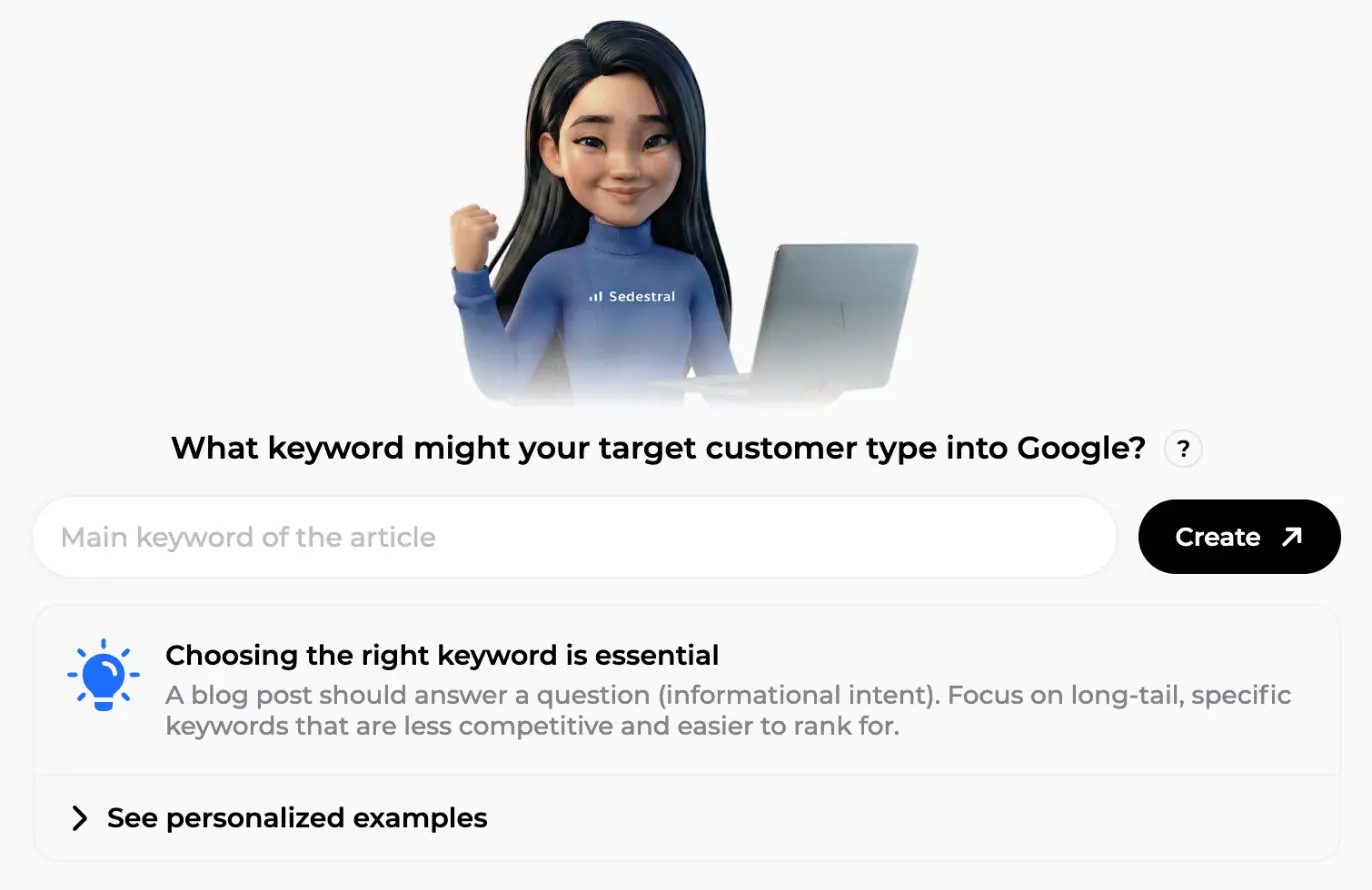
On this screen, Alya asks "What keyword might your target customer type into Google?" and reminds you that a blog post should answer a question with a specific, less competitive keyword. Click Create and she takes over: competitor analysis, outline, writing, images, content score. The full flow is in the AI article writing guide.
Research also feeds your topics: five ways to phrase "how to set up a reef tank" is one topic for your topic map, not five articles. Alya groups them in Blog Strategy.
Keyword suggestions: ideas you didn't think of
The second tab works the other way round. You type nothing: Sedestral proposes keywords from your site's context, your pages and your sector, ranked by relevance. Open it when you're out of ideas or want to check what you're missing.
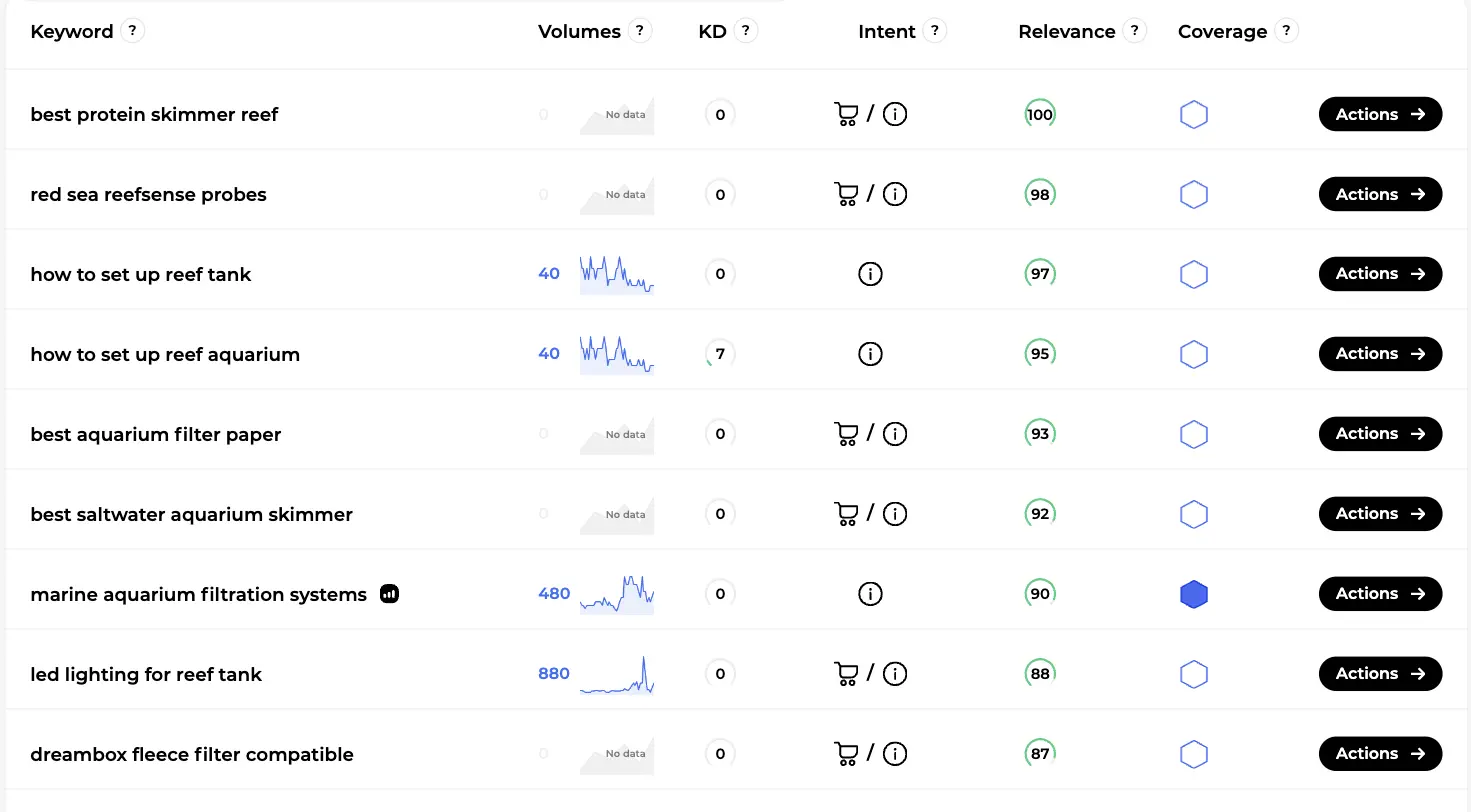
On this screen, suggestions are sorted by relevance from 100 downwards, and a few rows tell the whole story. "how to set up reef aquarium": 40 monthly searches, KD 7, informational intent, an easy blog topic. "led lighting for reef tank": 880 searches, commercial intent, rising trend, a category page candidate. "marine aquarium filtration systems": filled Coverage marker, the store already covers it, so optimise rather than create.
The Actions button works as in the research tab. Because the list is sorted by relevance, the top rows are where you have the most legitimacy, which is where a small site should start.
How To Start
Get Sedestral Running on Your Site
- Connect your website or CMS (WordPress, Shopify, PrestaShop, Wix, Webflow, Odoo or Joomla)
- Run Nox to identify technical issues blocking your rankings
- Set up Alya with your target keywords and publishing schedule
- Activate Marc to monitor your rankings and track competitors
- Let Maya surface backlink opportunities as your authority grows
Cannibalisation detection: pages fighting each other
What cannibalisation is
Keyword cannibalisation happens when several pages of your site rank for the same keyword. Instead of one strong page, Google sees three lukewarm candidates, alternates between them, and often shows all three lower than one would have ranked alone. Positions wobble, clicks get split, and the page that converts best isn't always the one Google picks. The classic case: a category page, a buying guide and an old blog post all targeting "best reef salt". Nobody planned it. It accumulates over the years.
How Sedestral finds it
Open the third tab, Cannibalization. The first time, you'll see an explanation screen and a single button, View my cannibalized pages.
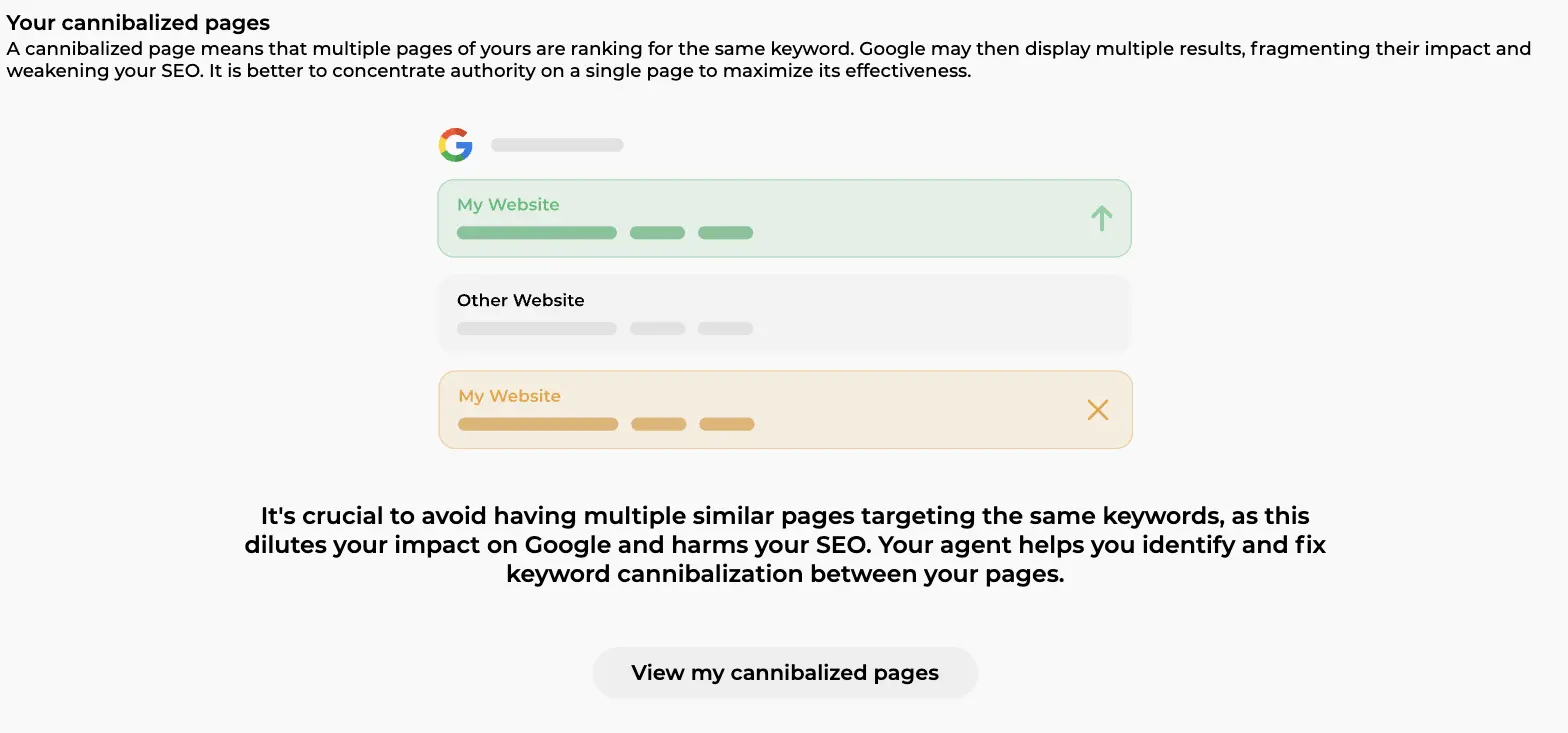
On this screen, the illustration shows the problem at a glance: two "My Website" results on the same Google page, one going up, one marked with a cross, another site slotted between them. Click the button and the analysis runs in a few seconds.
Sedestral doesn't guess from your content. It reads the real ranking data from your Google Search Console connection and looks for keywords where more than one of your URLs appears. That's why GSC must be connected first (see the site configuration guide, or our Google Search Console guide if you're new to it). No connection, no analysis.
The result is a list of cannibalised keywords: for each one, the number of pages ranking, their URLs, each page's rounded position, and an arrow when a position has recently improved. Click a keyword for a detail view with every page, its position and trend. If nothing is found, you get a plain "no page has been identified as cannibalized" message, which is genuinely good news.
What to do about it
Detection is the easy part. The fix is a judgement call, and it stays yours. A practical order of operations:
- Prioritise. Start with keywords that have real search volume, involve three or more pages, or where no page sits on Google's first page. A transactional keyword split across three pages costs you sales, not just traffic.
- Check the intent. Two pages on one keyword aren't always a problem if they serve different intents (a guide and a product page can coexist). Our search intent guide helps you tell them apart.
- Pick the winner. Usually the page with the best position, the strongest content and the most backlinks. The My pages view in SEO Visibility shows the keywords each page actually earns, which settles most debates.
- Merge, redirect, relink. Fold the useful content of the secondary pages into the winner, set 301 redirects, update internal links, then submit the page to Google (Nox's indexing tracking has a per-page Request button, see the technical SEO audit guide). Re-check in four weeks.
Then strengthen the winner with Rémi's page optimisation so it earns the position it now has to itself (see the content optimisation guide).
Prevention beats cure: before creating an article, glance at the Coverage column. A filled marker means the topic already has a page. Optimise it instead of adding a competitor to it.
Edit images: ALT tags and AI retouching for product photos
The second Quick access entry, Edit images, opens a screen titled Optimize an image. It does two jobs on product images: writing the ALT tags Google and screen readers rely on, and retouching product photos with AI.
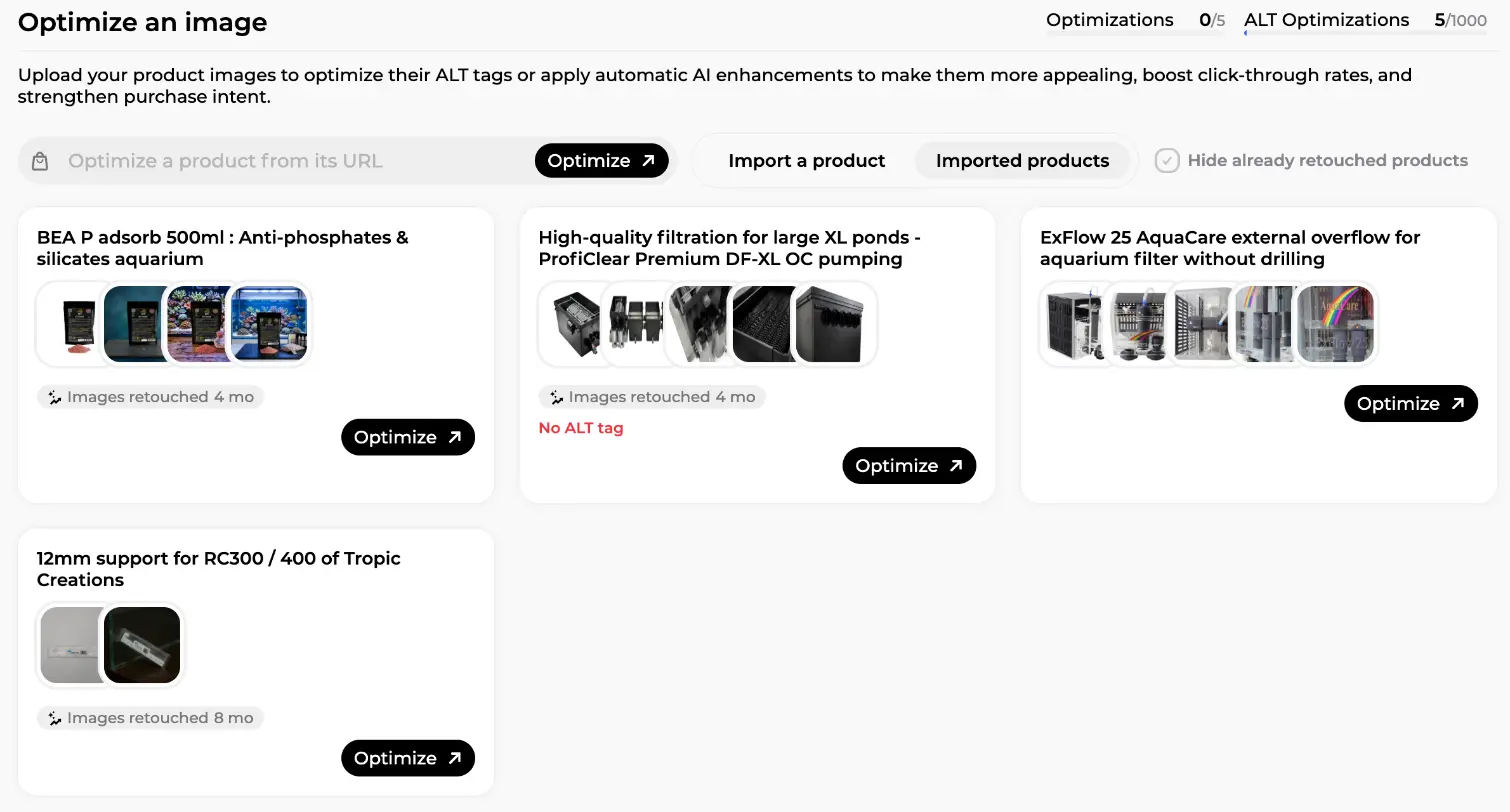
On this screen, several things are visible at once:
- Top right, the two quotas: Optimizations (AI retouches, here 0 of 5 used) and ALT Optimizations (here 5 of 1000). Limits depend on your plan and the counters are always visible.
- A field to Optimize a product from its URL: paste a product page address from your connected shop, click Optimize, and Sedestral imports the product and its images from your CMS.
- Two tabs, Import a product and Imported products, plus a Hide already retouched products toggle.
- Product cards with the title, a strip of thumbnails, a badge such as "Images retouched 4 mo", a red No ALT tag warning when descriptions are missing, and an Optimize button.
Generating ALT tags
Click Optimize on a product. For each image, the AI looks at the picture and the product's context (title, description) and writes a descriptive ALT text: what the object is, its key characteristics, no keyword stuffing. You review, edit if you like, and publish. Because the product came in through the CMS connection (WordPress, Shopify, PrestaShop, Odoo and the others), the ALT texts go straight back to your shop.
Why bother? Missing ALT is one of the most common findings in Nox's technical audit, and on a catalogue of thousands of products nobody fixes it by hand.
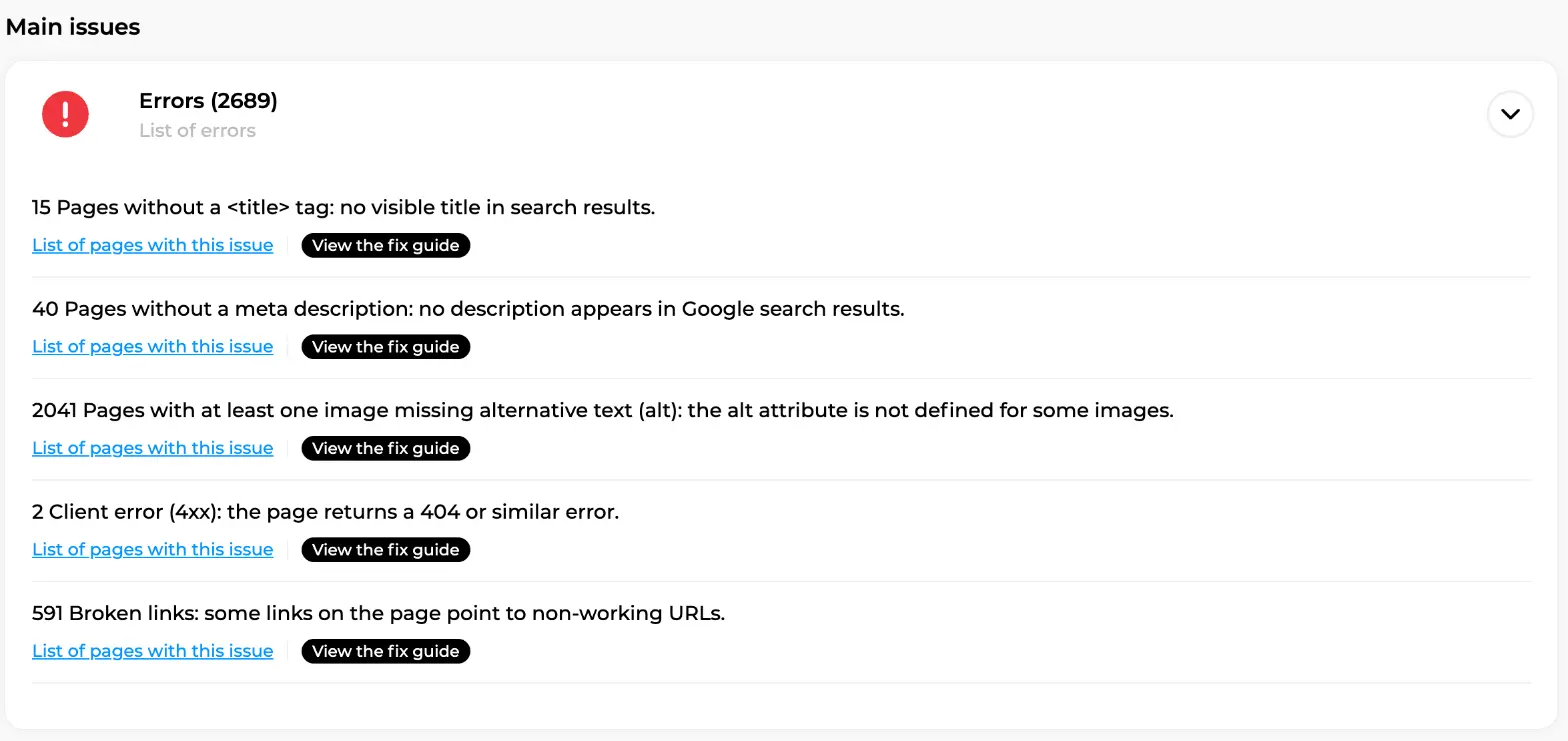
On this screen, the error list includes "2041 Pages with at least one image missing alternative text (alt)" next to missing titles, meta descriptions and broken links. For product pages, the audit offers a shortcut into this image editor. For blog posts and CMS pages, Sedestral generates the ALT text for you to copy into your CMS.
AI retouching of product photos
The same Optimize button also gives access to AI enhancement of the photos themselves. The goal, as the screen puts it, is to make product images "more appealing, boost click-through rates, and strengthen purchase intent". Retouches count against the Optimizations quota (5 in this example), which is why each card records when its images were last retouched. You see the result before anything is published, and you decide.
Create your account and connect your site
In short
- The Toolbox answers quick questions: is this keyword worth it (volume, KD, intent, relevance, coverage), what else could I target (suggestions by relevance), which of my pages compete against each other (cannibalisation, from real Search Console data).
- Every keyword row has an Actions button that launches an article with Alya, so research flows straight into writing.
- Cannibalisation detection is automatic; the fix (merge, redirect, relink, re-optimise) stays in your hands.
- Edit images imports products by URL, writes ALT tags with AI and publishes them back to the CMS, and retouches product photos, with quotas on screen.

Automate Your SEO With AI Agents
Sedestral connects six AI agents to your website to handle content, audits, rankings and backlinks, without the manual grind.