You already have the pages. Product sheets, categories, a few blog posts, an "About" page written in a hurry two years ago. Most of them sit between position 5 and 30 on Google, close enough to see the traffic, too far to get it. Rewriting them one by one after reading the ten competitors that outrank you? That's a week of work, and nobody has that week.
This guide shows how SEO content optimization works in Sedestral with Rémi, the optimization agent: picking a page, choosing the keyword, validating the terms, reviewing the rewrite in the editor and publishing it back to your site. We'll also cover what Rémi never touches, the settings that control him, and how images fit in.
What Rémi does when he optimises a page
Optimising a page means closing the gap between it and the pages Google already rewards for that query. From a single main keyword, Rémi:
- Reads the top 10 Google results: headings, paragraphs, questions, length.
- Extracts the semantic terms those pages share, with how often and where they use them.
- Works out the search intent behind the query.
- Rewrites your existing content, keeping your structure and tone, adding the missing terms, enriching headings, adding an FAQ when Google shows one.
The result is measured by the content score, a mark out of 100 against those competitors. It works best on pages already ranking between 5 and 30: Google trusts them, they just lack depth.
Not sure which pages deserve the effort? Rémi's content audit ranks them for you (quick wins, urgent fixes, long-term work). This guide picks up where the audit leaves off: one page, start to finish.
Picking the content to optimise
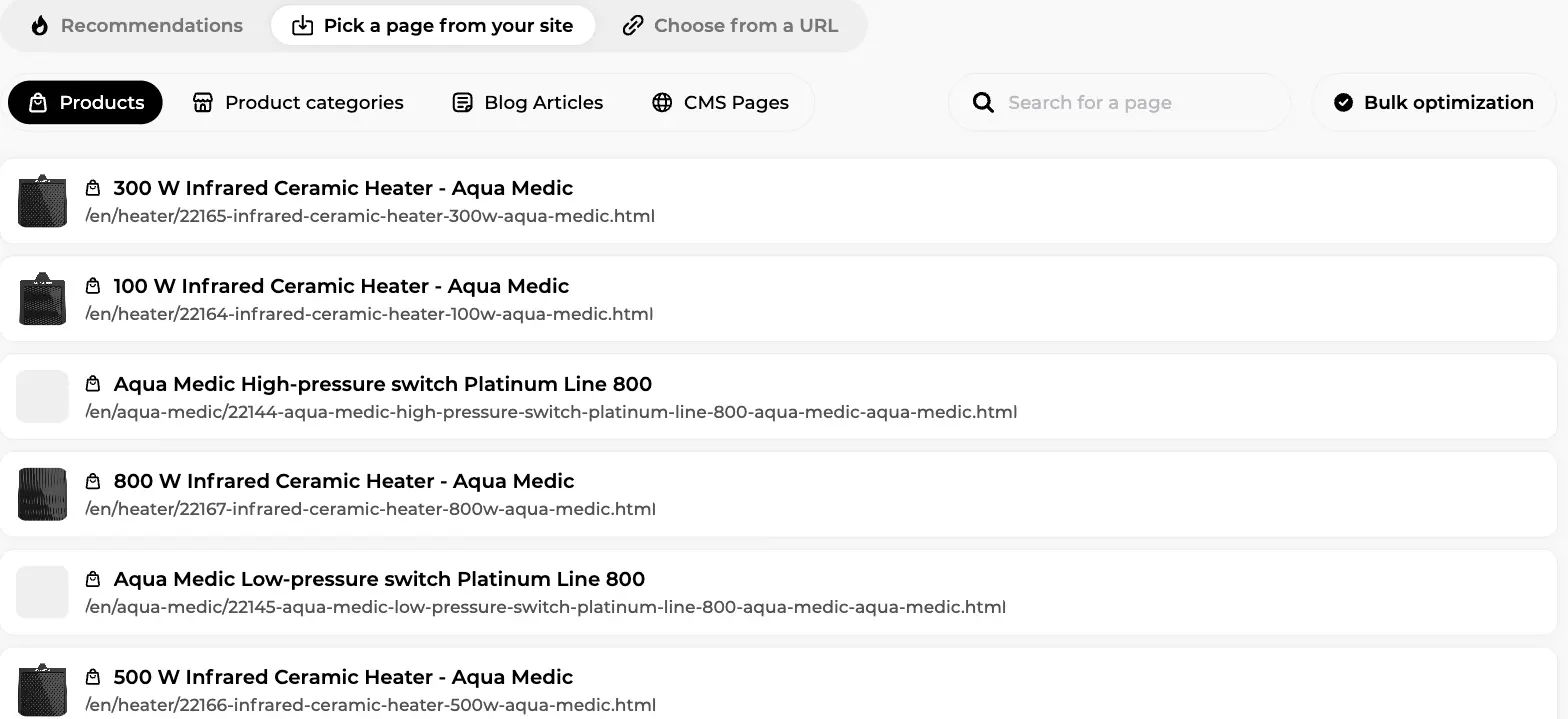
In the left menu, click Optimization (Rémi's home screen), then Optimize a page. On the screen below, the Pick a page from your site tab is open on Products, next to Product categories, Blog Articles and CMS Pages. The list shows the products synced from the connected store with thumbnail, title and URL, plus a search field and a Bulk optimization button. The two other tabs are Recommendations and Choose from a URL.
| Entry point | How it works | Best for |
| Recommendations | The pages the content audit flags, each with an Optimize button. | Working through Rémi's priorities. |
| Pick a page from your site | Content synced from your CMS (WordPress, WooCommerce, Shopify, PrestaShop, Wix, Webflow, Odoo, Joomla). Title, description, HTML and the Search Console keyword are pulled in automatically. | The everyday path: once optimised, the page goes back to the site in one click. |
| Choose from a URL | Paste the full URL, click Import. Sedestral extracts the main content and suggests keywords. | Any page, even without a CMS connection. |
Product pages and categories get their own treatment: a product description is rewritten as a product description, not as a blog post.
The keyword step
Click a page and the Optimize a page dialog opens on Main keyword selection. This one decision shapes everything else: the keyword decides which competitors Rémi analyses, which terms he extracts, which intent he targets.
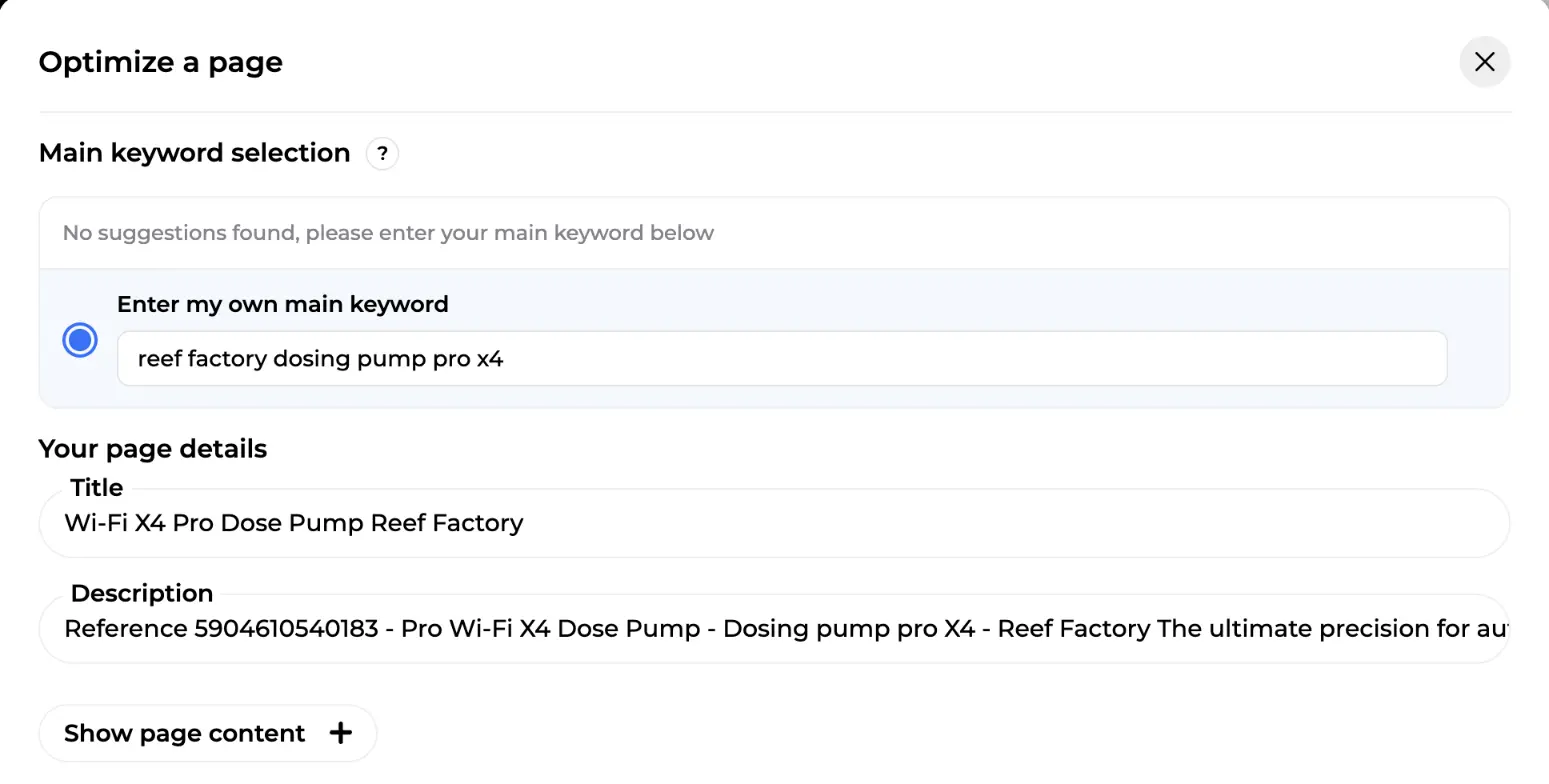
Sedestral suggests up to four keywords from your Google Search Console data (with position, clicks and impressions) or from an AI reading of the content. In the example below, no suggestion came back, so the user typed their own under Enter my own main keyword. Under Your page details, the current Title and Description are prefilled from the site, and Show page content unfolds the imported text.
One rule: pick a keyword you're already visible for (position 5 to 30); a page at position 50 on a competitive query needs more than a rewrite. Add secondary keywords if you have them, then click Optimize at the bottom right. Hesitating between several queries? The Toolbox gives you volume, difficulty and intent for each.
Term selection
Rémi now analyses the top 10 competitors. When the Validate terms to insert setting is on, he pauses and shows you what he found before writing a single line. On this screen, step 1 Term selection is active and step 2 Instructions waits on the right. The favicons of the ranking pages sit next to a View the 10 results link, and the table Validate the terms to insert lists each term with a checkbox.
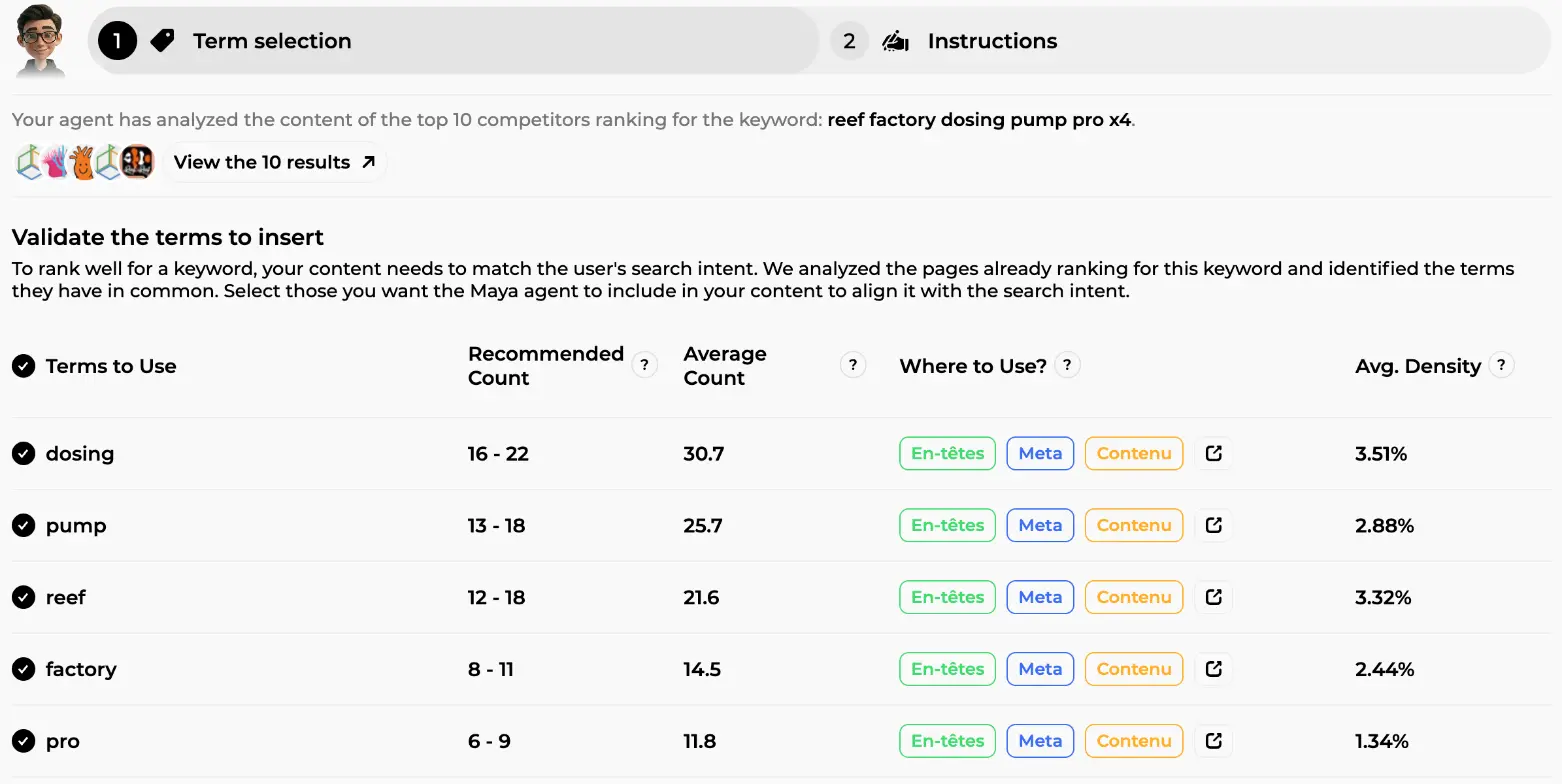
Each row shows how competitors use the term: Recommended Count (the range to aim for, 16 to 22 for "dosing" here), Average Count, Where to Use? badges for headings, meta tags and body content (click one to see the competitor sentences), and Avg. Density.
The most relevant terms are pre-selected. Your job is to untick what doesn't belong: a competitor's brand, a product line you don't stock. Only ticked terms go into the rewrite, and Validate and continue moves on. Terms in the body are worth 47 of the 100 points in the content score, and you know your catalogue better than any algorithm.
Guidelines and instructions
Step 2, Instructions, depends on the content type.
For blog posts and CMS pages, the Knowledge step lays out everything Rémi plans to use: the competitor sources (six pre-selected, each with an AI justification, word count, content score and authority), internal links and external links (up to 7 each, suggested by Rémi, editable), and a knowledge base from your brand context so the rewrite uses your own delivery terms, specs and guarantees.
For product pages and categories, the default is a simplified flow: Rémi goes straight to the rewrite using the writing style set for that content type. Enable the guideline setting (see below) and an extra step appears with custom instructions (up to 1,000 characters: tone, angle, points to cover, things to leave out), a choice of writing style, and, for categories only, internal linking.
Whatever the type, the brand context always applies: writing style, excluded terms, knowledge, sources.
The rewrite in progress
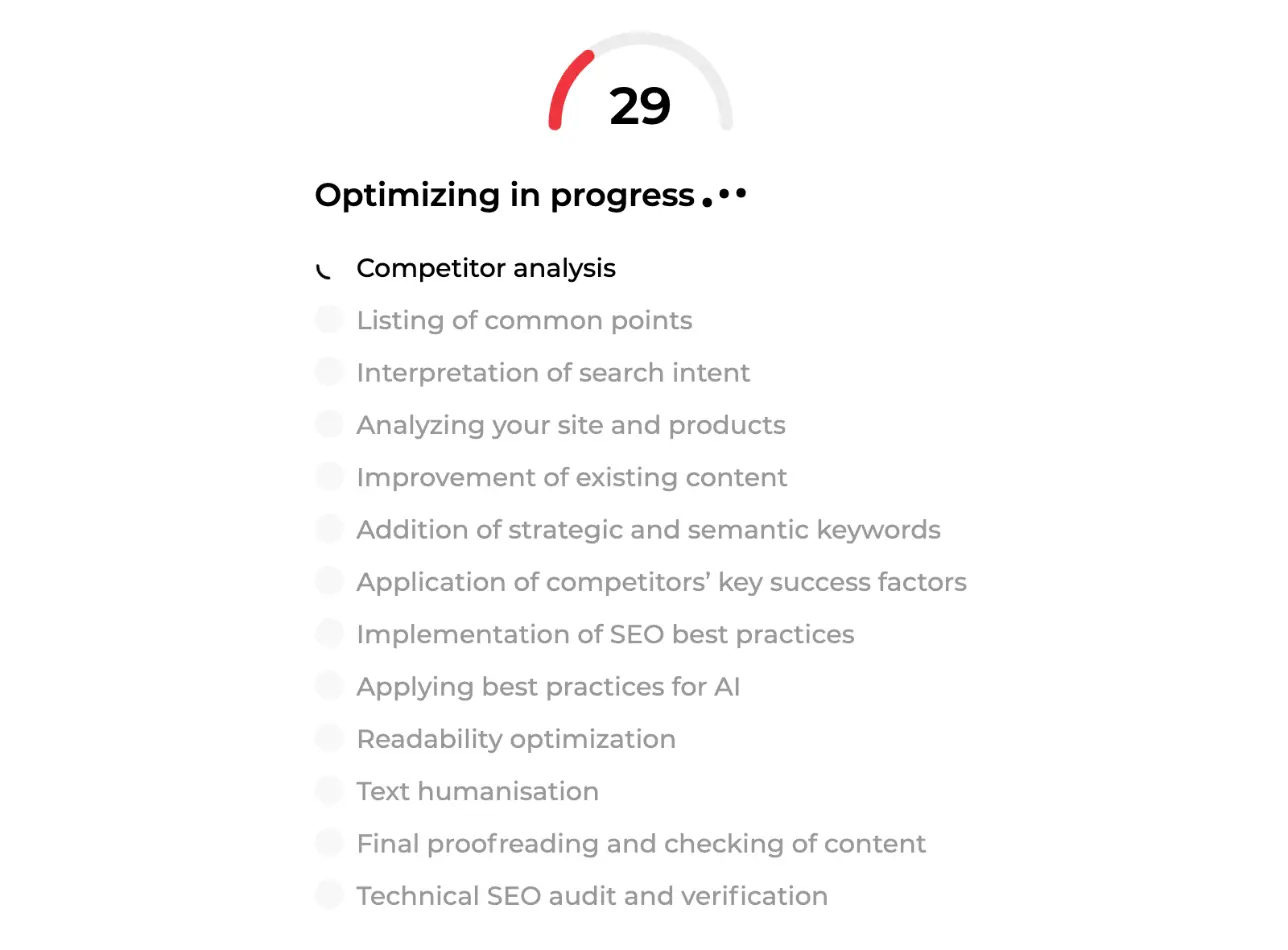
Launch the rewrite and the gauge shows the page's current score (29, in red, for this product page) above the checklist Rémi works through. On the screen below, Competitor analysis is running; queued behind it are the listing of common points, interpretation of search intent, analysis of your site and products, improvement of existing content, addition of strategic and semantic keywords, competitors' key success factors, SEO best practices, best practices for AI, readability optimisation, text humanisation, final proofreading and a technical SEO check.
It takes from a few seconds to about six minutes. "Best practices for AI" shapes the content for AI search too, since ChatGPT and Gemini cite pages (see the introduction to GEO), and "text humanisation" strips the phrasing that gives away machine-written copy. Before any of this starts, your original content is saved in the version history.
The review step
When Rémi is done, the page opens in the editor as a draft. Nothing is published yet. On the screen below, the rewritten product page carries a Product Page badge and a 13 Improvements counter. The title and desc fields have been rewritten (a real title naming the product and its use, a description that says what the pump does instead of quoting a reference number), followed by a concise summary and a detailed description structured with H3 headings and bullet points. On the right, the Content score panel shows 82 against a competitor average of 64.
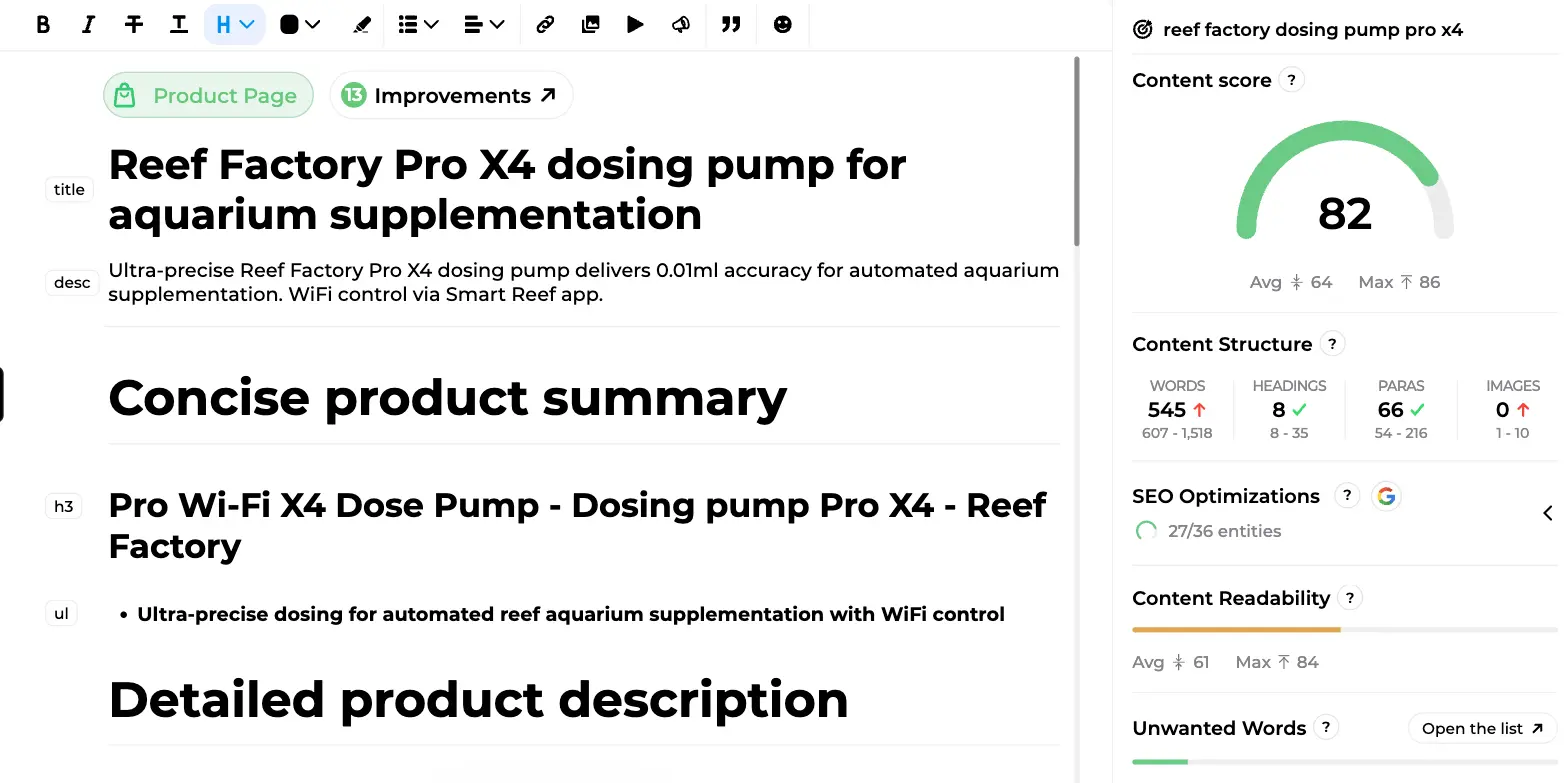
The review goes in three moves:
- Compare. The Improvements button lists what changed, the score panel shows the terms added and the sources used, and the History icon holds the "Before optimization" version to compare or roll back.
- Correct. Edit directly, or select a passage and click the Edit selection pill at the bottom of the editor to tell Rémi in plain English: "shorten this", "insert the missing SEO terms", "drop the marketing tone", "add a concrete example". Every change appears as a word-by-word diff with an Undo changes button, your writing style is applied to the fix, and the chat consumes no credits.
- Validate and publish. Export article at the top right replaces the existing page on your site: a live page stays live, a CMS draft stays a draft. Not ready? Save keeps it in the List of optimizations. No CMS connection? Export as HTML.
Pro Tip
Audit Before You Create New Content
Run Nox's technical audit on your existing site before asking Alya to publish new pages, fixing crawl issues first means your new content ranks faster.
Reading the content score
On the detail below, the page scores 82, above the competitor average (64) and close to the maximum (86). Content Structure compares words, headings, paragraphs and images to the competitor range: 8 headings and 66 paragraphs are within range, while 545 words against 607 to 1,518 and 0 images against 1 to 10 are flagged in red. SEO Optimizations shows 27 of 36 entities covered, and Content Readability and Unwanted Words each get a bar with the competitor average and maximum.
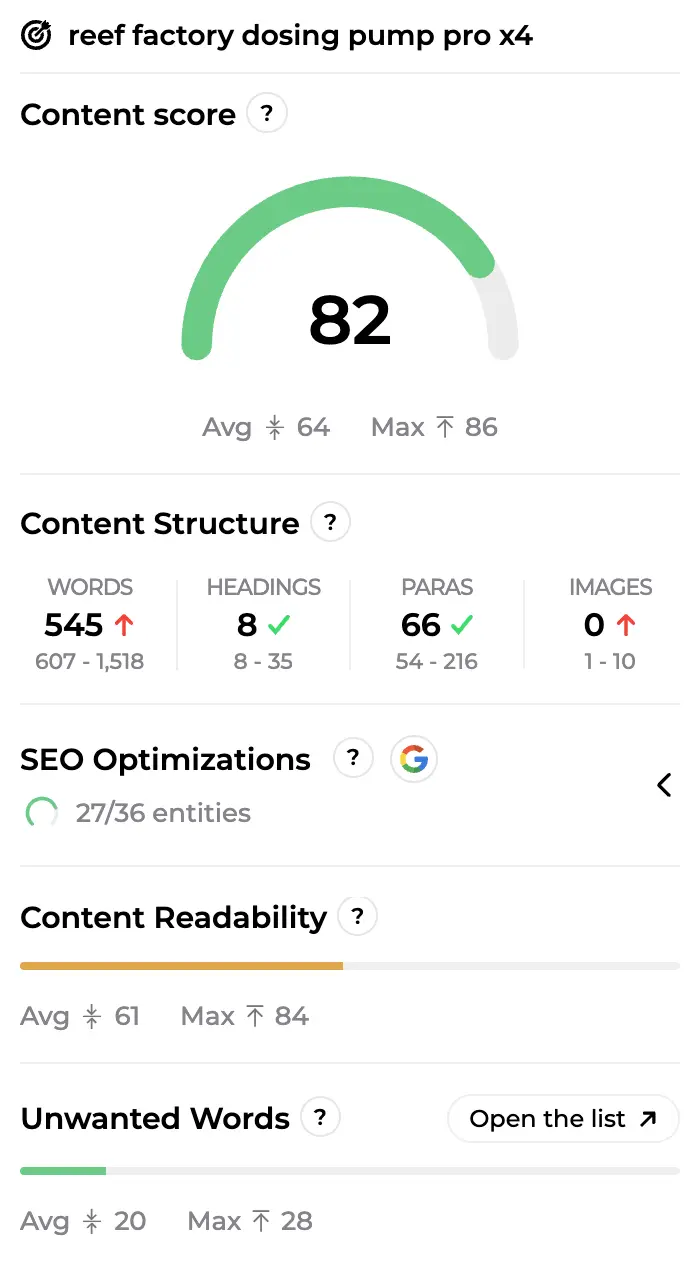
Aim for 70 to 85: beyond that, gains are marginal. The red flags show what Rémi won't do alone: he won't invent 200 words of product facts or add photos. A knowledge base entry, or a couple of images (see below), finishes the job.
What Rémi never changes
Rémi rewrites text. He does not touch:
- Your page builder layout. On a WordPress site built with Elementor, he optimises the text zone by zone inside the builder data and republishes without breaking the design, with nothing to enable. Each zone shows its verdict in the review editor: "Rewritten by the AI", "Unchanged", or "Will not be published" with the reason. Title and meta description are kept, the rewrite is done at constant length, no FAQ is added. Odoo builder pages get the same treatment automatically, with no setting to enable.
- Quotes and customer testimonials. Never rewritten.
- Facts. A rewrite that adds a number, a promise, a superlative or a nuance missing from the original page, or drops a link, is rejected by a factual guardrail and the original text stays online.
- Product data. Prices, references, stock, variants, images: only the description and the SEO fields are rewritten.
- Your original version. Saved before every optimisation.
Optimization settings
Rémi's behaviour is set in Site configuration, Configuration tab, Optimization sub-tab. On the screen below: a regex filter for URLs from Google Search Console and the technical audit (here keeping only the /en/ pages of a multilingual store), Validate terms to insert for text optimization set to Yes, and Enable guideline settings during product page optimization set to No.
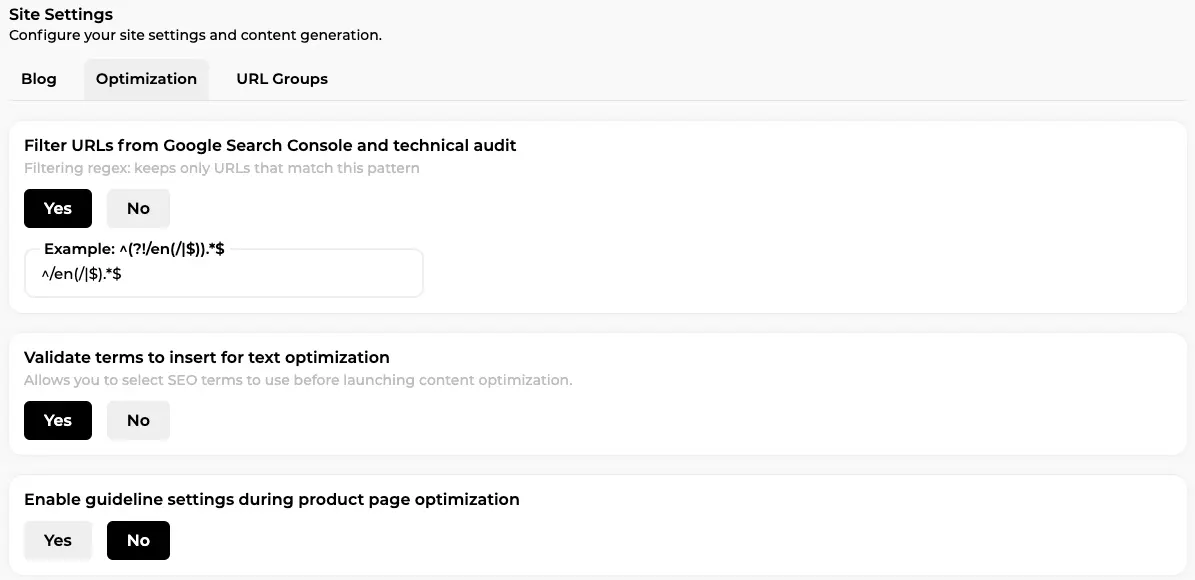
| Setting | What it does | Our advice |
| Validate terms to insert | Adds the term selection step before the rewrite. | Yes if your catalogue has brands or variants to keep out. |
| Guidelines for product pages / categories | Adds an instructions and writing style step, plus internal linking for categories. | Yes on an online store with several writing styles or strategic categories. |
| Internal / external links | How many links Rémi searches for automatically (1 to 4 each). | Keep 3 internal, 1 external. |
| Odoo builder pages | No longer a setting: Odoo builder pages are optimised automatically. | Nothing to enable. |
| Forbidden words, trusted domains | Shared with the brand context: words never to use, domains allowed for external links. | Fill them once, every agent applies them. |
Click Save changes and the settings apply to the next optimisation.
Images: ALT tags and retouching
Remember the "0 images" flag? Images have their own screen: Edit images in the Quick access menu opens Optimize an image. On the screen below, the header shows two quotas, Optimizations 0/5 and ALT Optimizations 5/1000. You can paste a product URL, switch between Import a product and Imported products, and tick Hide already retouched products. Each card shows the product's gallery, an "Images retouched 4 mo" label when already processed, a red No ALT tag warning when descriptions are missing, and an Optimize button.
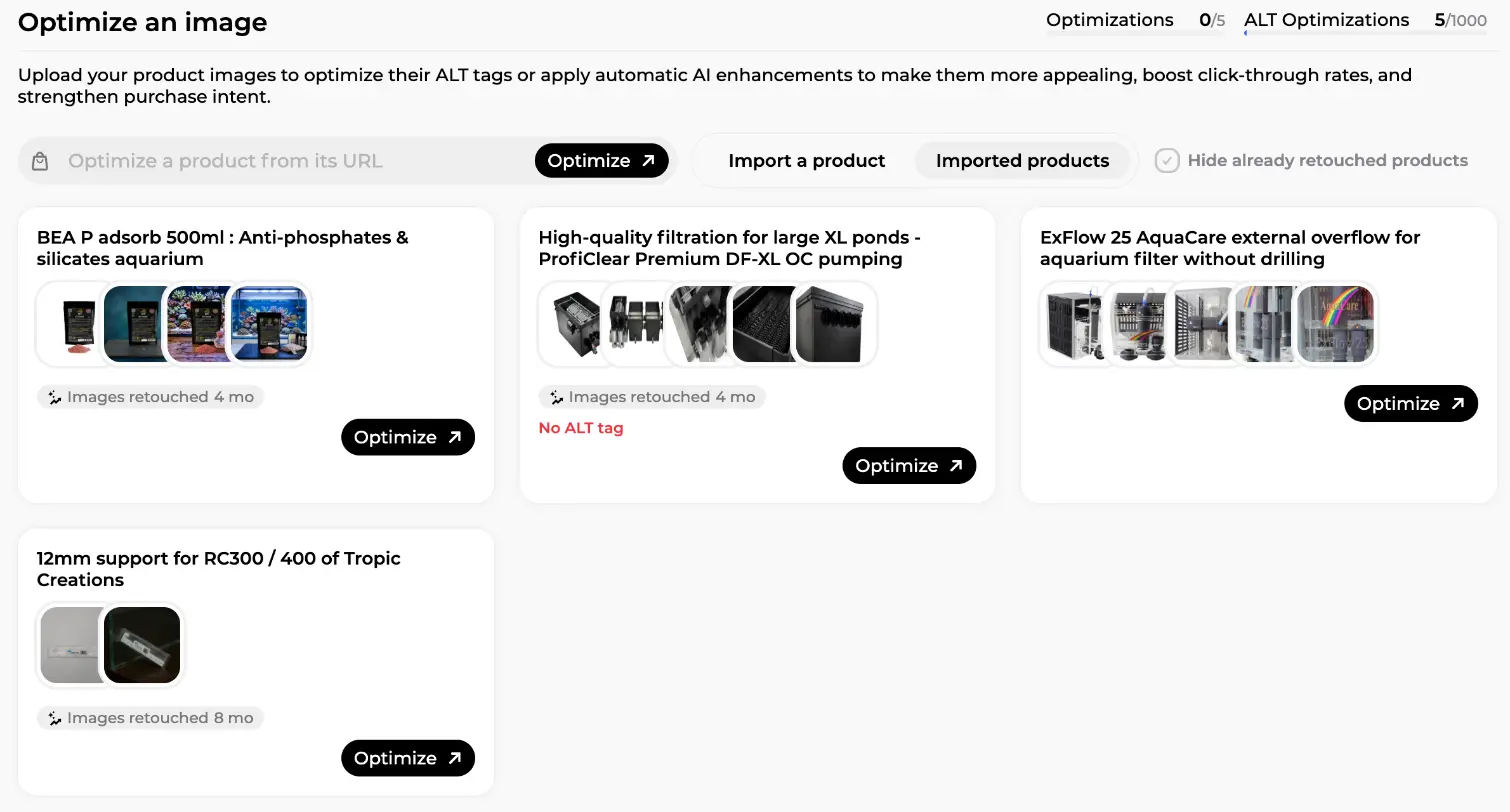
From that button, the AI reads each image and its product context and writes a descriptive ALT tag you validate before it's published to the CMS (missing ALT is also a check in the technical audit). The smaller quota is AI retouching: product photos enhanced to look more appealing, best kept for the products that drive your revenue. Both tools are detailed in the Toolbox guide.
When to optimise, and when not to
Optimise when a page has something to gain: it ranks between 5 and 30 on a keyword that matters, its score sits below the competitor average, or the audit reports a performance drop. Skip a page already scoring above 80 in the top 3. Then give Google time: three to four weeks before judging the effect, about a month between two optimisations of the same page, and a fresh look at strategic pages every few months, because competitors move too.
Lots of pages in that 5 to 30 zone? Bulk optimization lets you select up to 100 pages from page tracking, add a common instruction and run them through a queue. Each result waits as a draft for the same review step. How to prioritise that list is the subject of the content audit guide.
In short
Optimising a page with Sedestral comes down to four decisions and one click: pick the page, confirm the keyword, untick the terms that don't fit, add instructions if you want. Rémi reads the top 10, rewrites your content and hands it back as a draft with a content score. You review it in the editor, fix anything with a sentence to the AI chat, and publish it back with the layout, testimonials, facts and product data untouched. Then repeat on the pages just below the top 3.

Rank Higher Without the Manual Work
From technical audits with Nox to competitor monitoring with Marc, Sedestral's AI agents cover every layer of SEO so your team doesn't have to.