Your content is good. Your prices are right. And still, half your pages don't show up on Google. Nine times out of ten the culprit isn't the writing, it's the plumbing: a missing title tag here, a broken link there, a sitemap nobody submitted, two thousand product pages that Google discovered and then quietly decided not to index.
This guide shows you how a technical SEO audit works with Sedestral, feature by feature, with real screenshots from the panel. It's the job of Nox, the technical agent of your AI SEO team: he crawls your site like Google would, scores its health, hands you fix guides written for your site, then takes over the part everyone hates, getting your pages indexed and keeping them indexed.
What Nox does for you
In the left menu of the panel, under "SEO team", Nox sits at Technical ("Manage your indexing"). His area has two halves that feed each other:
- The technical audit: a crawl of your site that simulates Googlebot, produces a health score, sorts every problem by severity and points you to the fix.
- Indexing: continuous tracking of which pages Google has accepted, which ones it hasn't, and an active push (manual or autopilot) to get the missing ones in.
Why bundle the two? Because an audit tells you why a page can't be indexed, and indexing tracking tells you whether Google actually took it. New to the subject? Our guide on how to index your website on Google is the right primer.
Running the technical audit
Nothing to install. Open the Technical section, click "Audit my website" (or "Launch an audit" if you already have one), and Nox starts crawling. Allow up to 8 hours depending on the number of pages to crawl; you can leave the page, you'll get an email when it's done. One audit runs at a time, and the number of audits per month plus the number of pages crawled depend on your plan.
Two things worth knowing before your first run:
- Large or multilingual store? A regex URL filter in the advanced settings lets you crawl only
^/en/, only^/blog/, or everything except/products/. Handy when you want a score that reflects one market rather than five. - If the audit fails with "Unable to access the website" or finds suspiciously few pages, your firewall, Cloudflare or a security plugin is probably blocking our crawler. The help centre lists the IP addresses to whitelist.
The health score and site statistics
The Overview tab is your dashboard. On this screen you can see the Technical SEO Health gauge (78 here, tagged "Some areas to improve"), the count of Errors, Warnings and Suggestions (2,689 errors, 138 warnings, 0 suggestions), the number of explored pages (2,500), and a grid of site statistics: Explorability, HTTPS and Performance as percentages, then a tick or a cross for Sitemap, robots.txt, valid SSL certificate, HTTP/2 protocol, HTTP to HTTPS redirect, WWW redirect, directory security, internal linking and external links. In this example everything is green except the sitemap, which is exactly the kind of one-line finding that explains weeks of slow indexing.
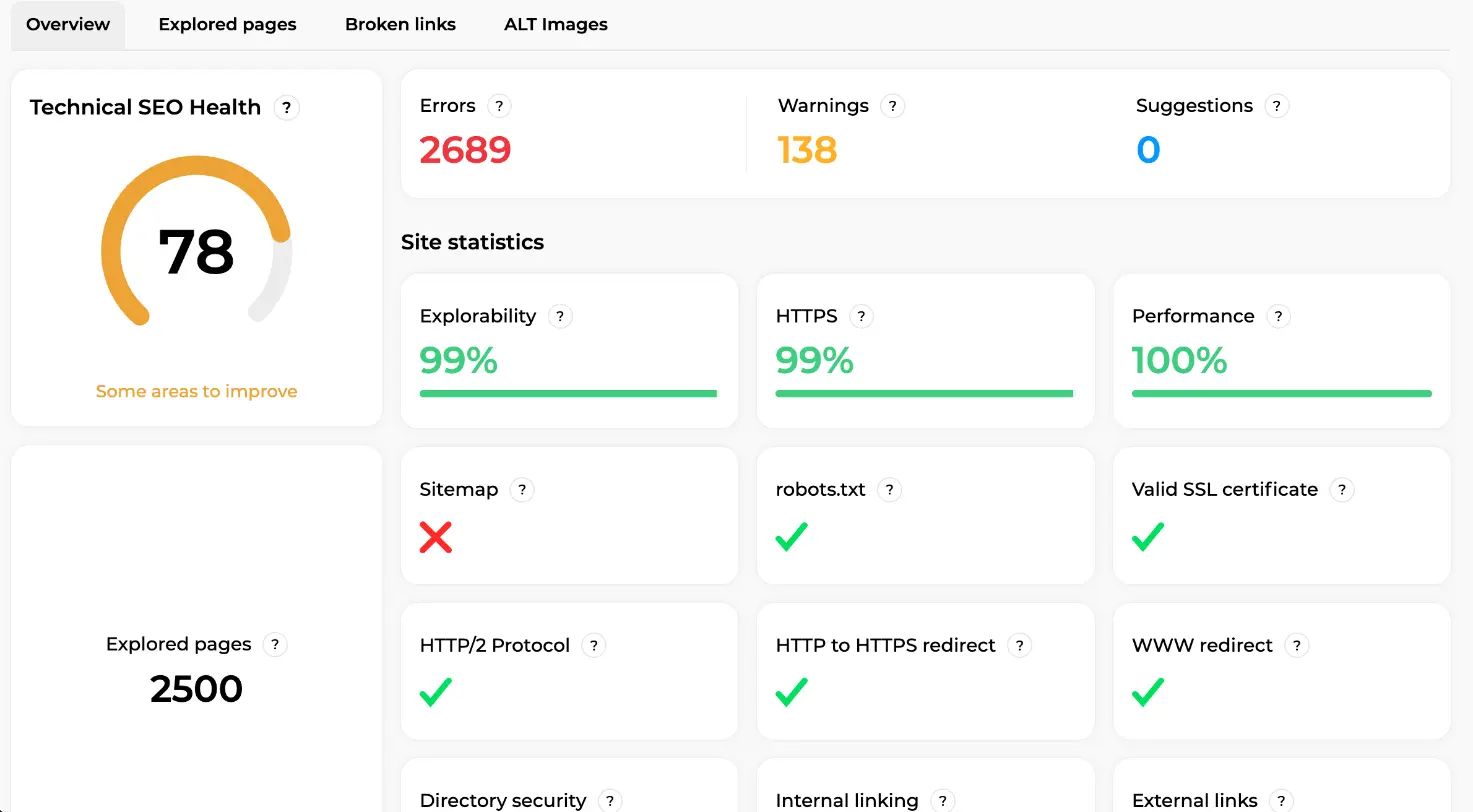
How is the score built? Three weighted pillars: critical errors (45%), infrastructure (30%: SSL, sitemap, redirects, HTTP/2, robots.txt, custom 404 page) and structural quality (25%: duplicates, slow pages, orphan pages, mixed content). Penalties scale with the percentage of pages affected, so one broken URL on a 2,000-page store barely moves the needle. Read it like this: 88 and above is healthy, 65 to 87 needs work, below 65 means something is actively hurting you.
Issues by category and severity
Scroll down and you reach Main issues, grouped into three collapsible blocks:
- Errors (red): what stops Google from reading or indexing a page. Missing title, missing meta description, missing H1, images without alt text, 4xx and 5xx codes, broken links, redirect loops, non-indexable pages, missing doctype.
- Warnings (orange): what drags rankings down without blocking indexing. Duplicate or badly sized titles, orphan pages, HTTP pages, slow TTFB (over 600 ms), slow load (over 3 s), pages over 1 MB, obsolete HTML tags.
- Suggestions (blue): optimisations such as titles that don't match the content or a missing canonical tag.
On this screen the Errors block is open. Each line states the problem in plain words with the number of pages concerned: 15 pages without a title tag, 40 without a meta description, 2,041 pages with at least one image missing alt text, 2 client errors (4xx), 591 broken links. Under each line, two actions: "List of pages with this issue" and "View the fix guide". No spreadsheet to build: the priority is already sorted, by severity first and by volume second.
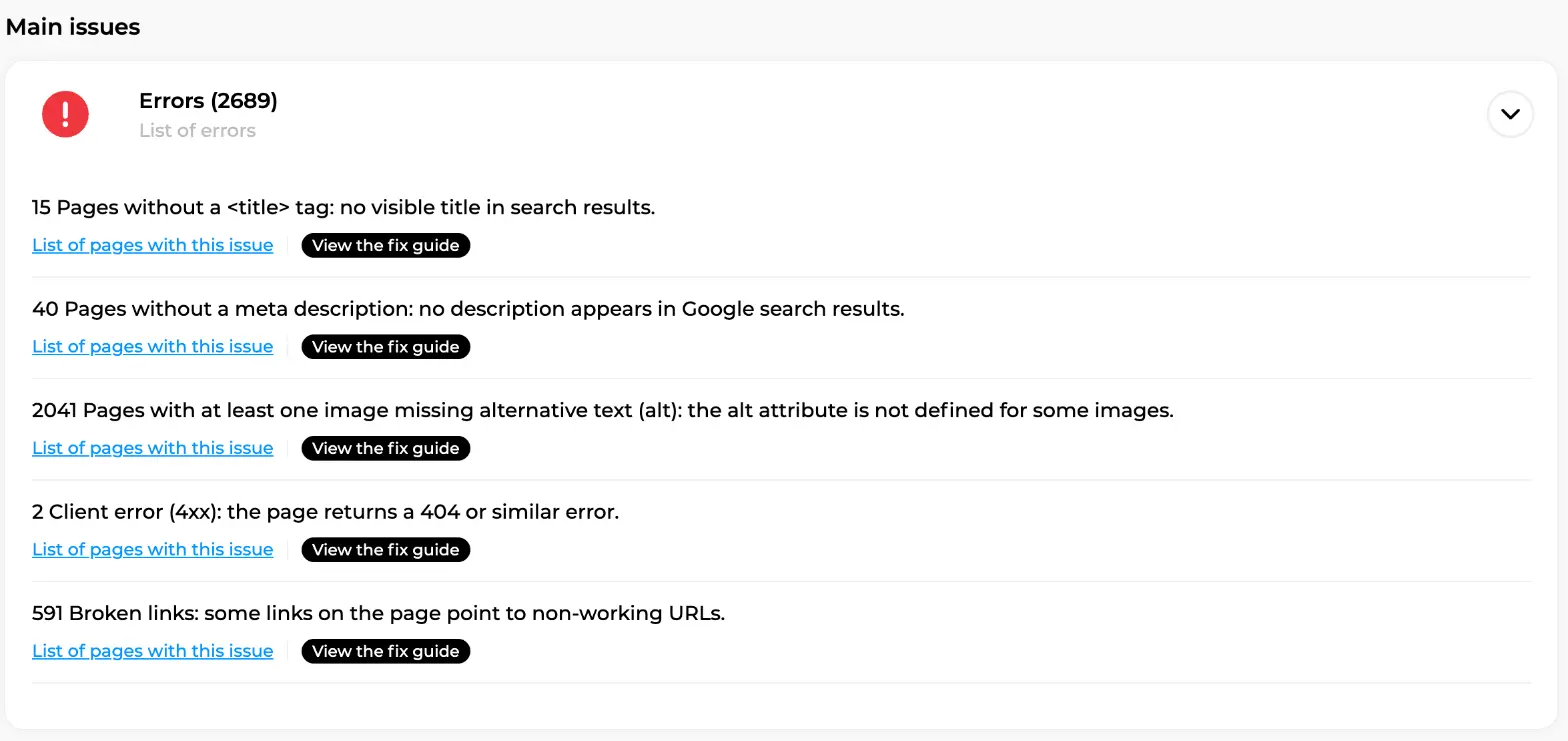
Tip: start with errors that touch more than 10% of your pages, on your strategic URLs first. A score of 85 with clean money pages beats a 95 obtained by polishing your legal notices.
Fix guides written for your site
This is where most audit tools stop and Sedestral keeps going. Click "View the fix guide" next to any issue and a full guide opens in the panel: what the problem is, why Google cares, how to read it in Sedestral, and how to fix it on your CMS (WordPress with Yoast or Rank Math, Shopify, PrestaShop and so on). On this screen you can see the guide "Understanding and fixing HTTP errors in the audit" with its summary: what an HTTP status code is, status codes in detail, why the audit finds pages with errors, then step-by-step fixes for 4xx, 5xx and redirect problems.
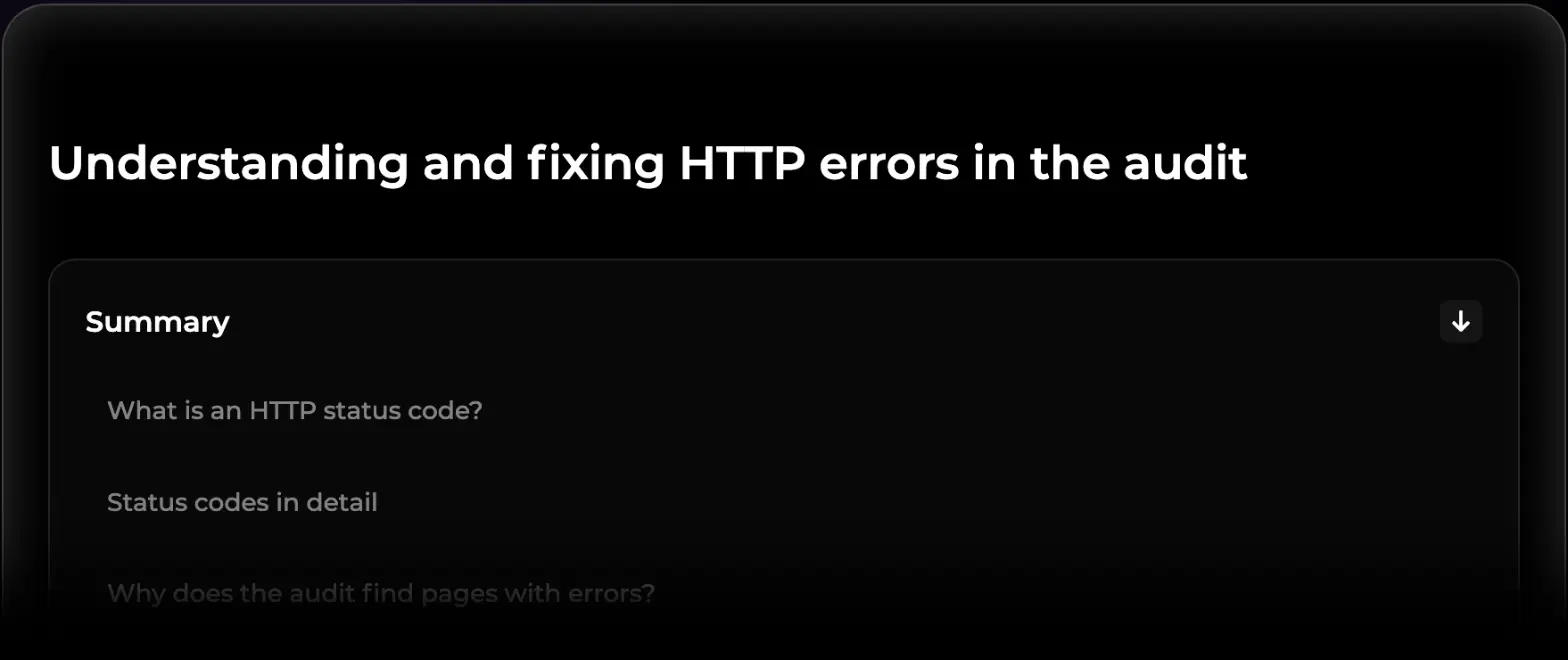
The same exists for broken links, the canonical tag, title and meta description problems, and a long list of "other problems": non-indexable pages, missing H1, orphan pages, high TTFB, load time, favicon, obsolete tags. You forward the guide to your developer, or you follow it yourself in ten minutes. Either way, nobody has to Google the error.
Worth knowing: for title and meta description problems you don't even need to leave the platform. Rémi's content optimisation rewrites them page by page and publishes to your CMS, and the Edit images tool generates missing ALT tags in bulk, which on this example store would clear the biggest error line in one go.
Explored pages, page by page
The Explored pages tab lists every URL Nox crawled. On this screen you can see two dropdowns at the top, Error type and Metric type, plus a Download button, then a table with one row per page: title and URL, a Health score out of 100, the HTTP Code (200 in green here) and the Issues count split into errors, warnings and suggestions. The example rows are product pages scoring between 74 and 81, each with 24 errors. Filter on "4xx" and you get only broken pages; filter on "Pages without title" and you get the exact list to hand over.
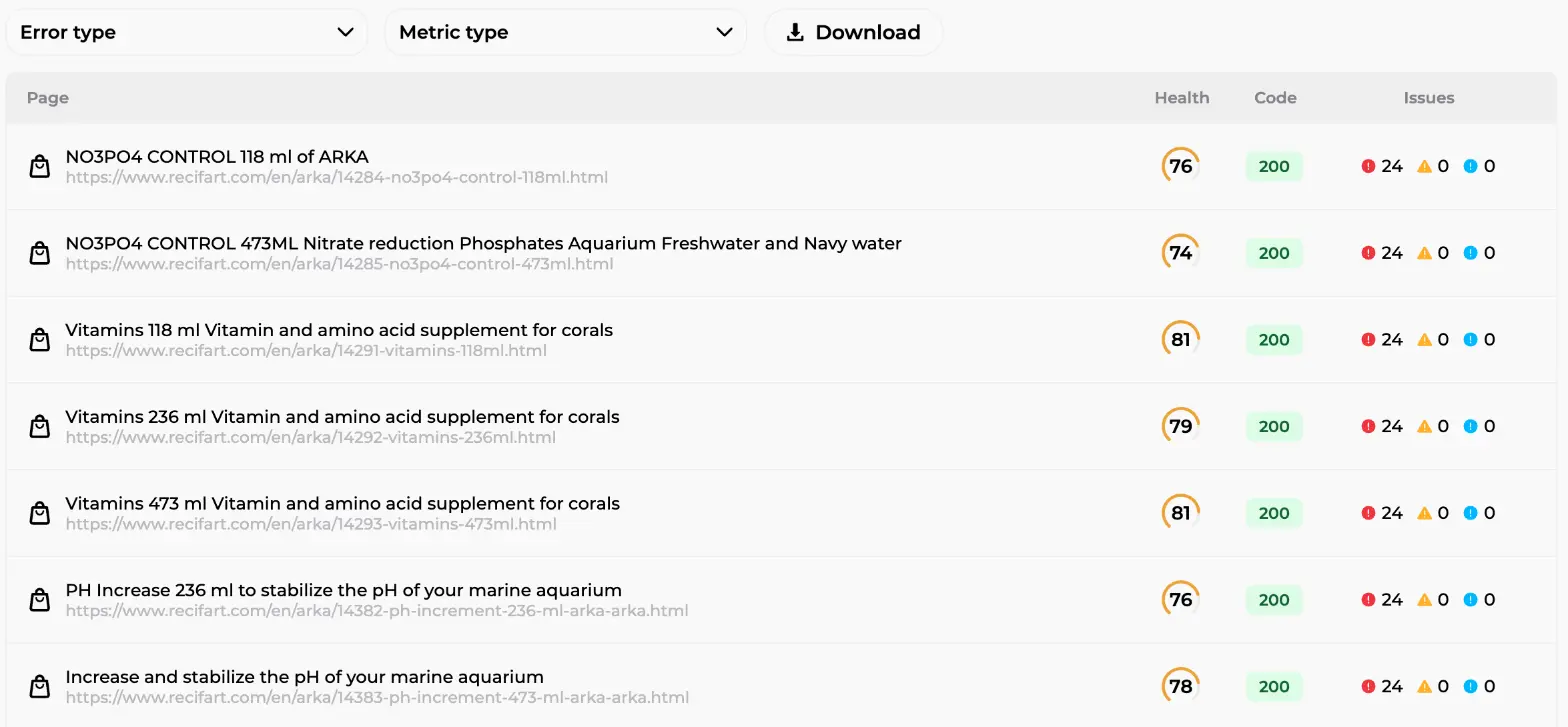
Click a page and you get its full sheet: title, meta description, status code, TTFB, DOM size, H1 and H2 tags, Open Graph tags, and every issue detected on that page with its explanation. Two more tabs sit next to it, Broken links and ALT Images, and the Download button exports the whole audit to Excel so your developer works from the same list as you.
Audits are snapshots. Fix, re-run, compare: a dropdown keeps your audit history, so you can prove the score went from 78 to 90 rather than feel it did.
Watch Out
Publishing Content Before Fixing Technical Errors
Creating new pages on a site with unresolved crawl or indexing issues is unlikely to improve your rankings, use a technical audit tool like Nox to clear blockers before scaling your content output.
Indexing tracking with Nox
A clean site is step one. Step two is making sure Google actually indexes it, and that's the part Nox handles day after day. The Indexing tab covers your whole site, not only the content written by Sedestral. It needs your Google Search Console connected (Nox reads Google's official verdict, nothing estimated) and a first click on "Enable indexing".
Where the URLs come from
Nox fills the list of tracked pages from three sources: the sitemaps declared in Google Search Console and in your CMS (explored every night), every article, product or page published via Sedestral, and a manual import through the "Import URLs" button. On this screen, from the Site configuration, Connections tab, you can see Google Search Console marked as connected and, below it, "Your sitemaps": every sitemap known to Google with its last submission, last visit, pages discovered (16,953 here, one sitemap per language) and error count.
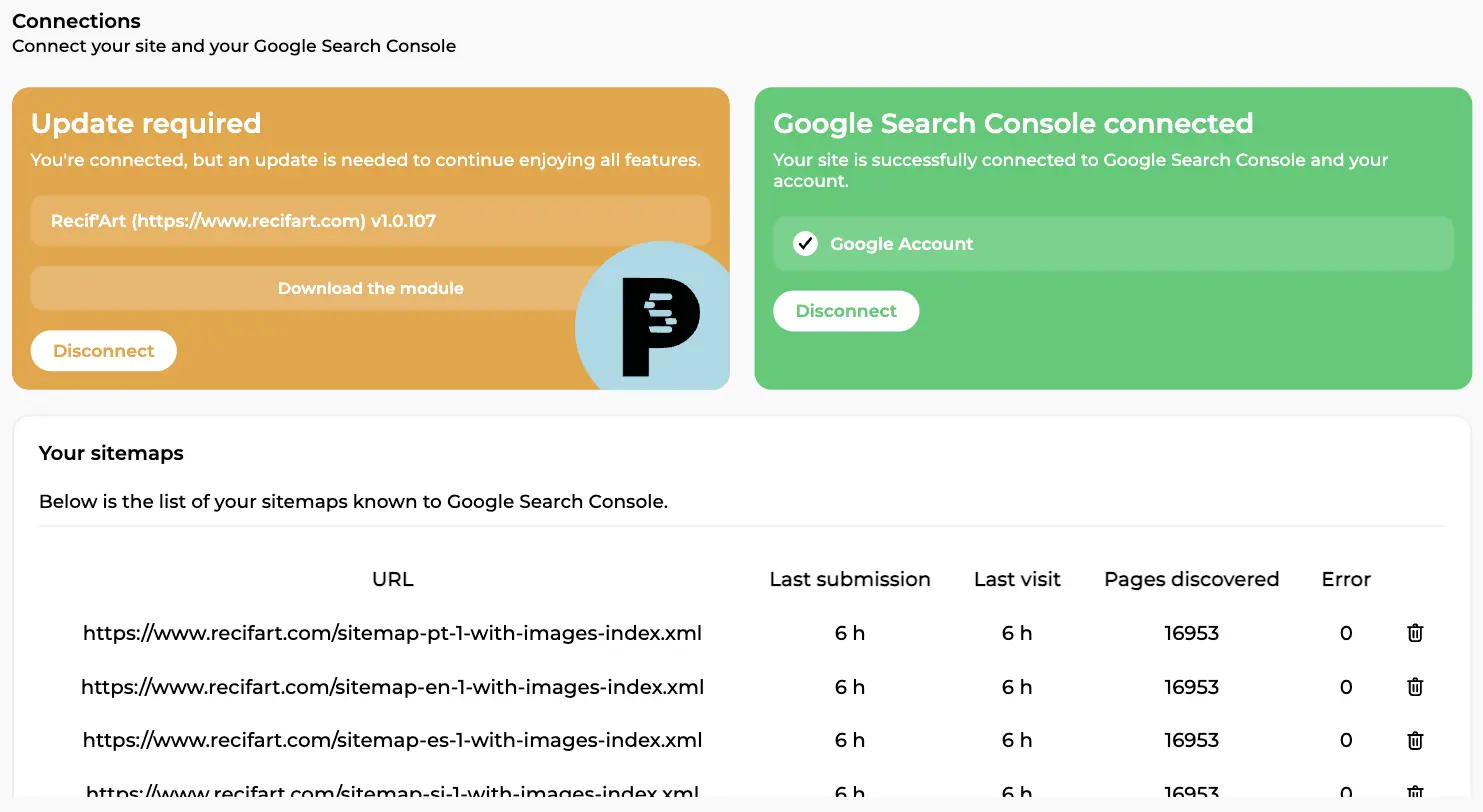
Don't want to track everything? Import filters in the agent configuration exclude URLs by URL group, regular expression or format, so cart pages or a secondary language never enter the list, and each sitemap can be switched on or off.
Four statuses and daily charts
Now the dashboard. On this screen Nox opens with a one-paragraph summary in plain words: "10217 of 17384 pages are indexed, which is a solid 59%. 7166 pages remain to be indexed: submit them via the Request button. 1 page is not indexable, check its cause in the tool's list to fix it on your site." Underneath, four cards with a daily chart each: Indexed (10K, green curve rising), Not indexed (7.2K, red), Indexing in progress (1, blue), Not indexable (1, grey). Top left, the balance of indexation credits with a "Top up" button; top right, "Configure the agent". Then the table of 17,384 pages with Import URLs, Reset and Filters, and for each URL its status badge, last check, and two actions: Details and Request.
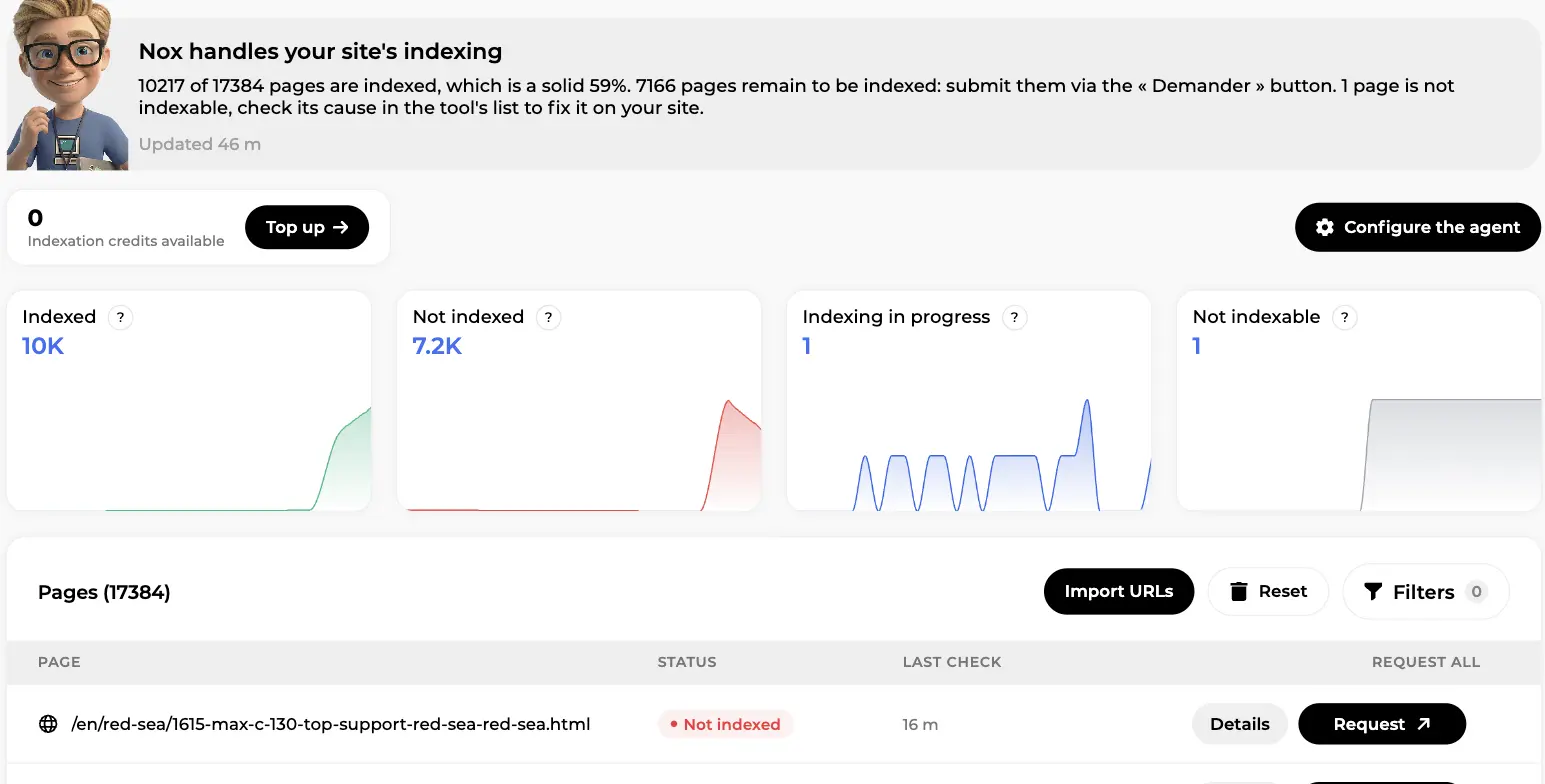
What do the statuses mean, concretely?
| Status | Meaning | What you do |
|---|---|---|
| Indexed | Google has the page, it can rank. | Nothing. Track positions in SEO analytics. |
| Not indexed | Google knows the page but hasn't taken it (too recent, thin, crawl budget, or a noindex tag). | Request indexing, or let the autopilot do it. |
| Indexing in progress | Submitted to the indexing network, verdict pending (checked about 4 days later). | Wait. |
| Not indexable | Structural block: canonical pointing elsewhere, 404 or soft 404, robots.txt, 5xx, 401/403, broken redirect. | Open Details, fix the cause on your site, force a new inspection. |
Status tracking is free and continuous. On premium plans Nox re-checks non-indexed and not-indexable pages every 6 hours, so a page that becomes indexable again after your fix gets picked up without you lifting a finger.
Details and Request, per page or in bulk
Details opens the full sheet of a URL: its source, Google's verdict word for word ("Crawled, currently not indexed", for instance), the canonical Google chose versus the one you declared, the exact error cause, credits spent, plus a timeline of inspections and crawls. Opening Details also triggers a live Google inspection, the fastest way to confirm a fix worked.
Request is the push. Nox inspects the page and, if it's indexable but not indexed, submits it to a fast indexing network so Googlebot comes and looks, instead of waiting to stumble on it. The badge moves to "Requested", then "In progress", then, a few days later, "Indexed" (or back to "Not indexed" with the credit refunded if the submission failed). Need to do this for 7,000 product pages? Set the Filters (status, format, URL group, source), click "Request all", and Nox previews the number of pages and credits involved before running the batch in the background.
Credits, standard and fast indexing rules
Only active submissions cost credits; tracking and re-verification never do. Two modes exist:
- Standard: 1 credit. For content produced by the agents, Nox first gives Google 2 days to find the page by itself, then submits.
- Fast (Apex): 3 credits. Immediate, priority submission for the pages that matter.
You don't pick the mode page by page. In "Configure the agent" you write indexing rules by page type: "If Article, then Fast", "If Product, then Standard", "If group Bestsellers, then Fast". The first matching rule wins. Credits are shared at site level, and only a subscription administrator sees the "Top up" button. The "accelerated indexing" add-on in the plans goes one step further: every piece of content created or optimised by your agents is submitted as soon as it's published, without the 2-day wait.
Autopilot with a daily limit
And if you'd rather not click at all? Turn on the autopilot. Nox then requests indexing for your non-indexed pages by himself, every day, within the daily cap you set (50 pages a day by default). Publish a new collection on Monday, and by the end of the week the pages have been submitted, checked and, in most cases, indexed, with credit usage capped exactly where you decided. Enabling it requires credits available; if the balance is empty, Nox offers a top-up first.
How the audit and indexing fit in your month
Day one, run the audit, open the Errors block and hand the fix guides to whoever manages the site. Day two, enable indexing, check the sitemaps in Connections, write a Standard/Fast rule or two and switch on the autopilot with a cap you're comfortable with. Then, once a week, glance at the four cards, and once a month re-run the audit and compare (again after any CMS or plugin update). Meanwhile Alya keeps publishing from your content strategy, Rémi optimises what already ranks, and every one of those pages lands in Nox's list automatically. The technical side becomes a background process you check, not one you run.
In short
- Nox audits your site like Googlebot would: health score out of 100, site statistics, issues split into errors, warnings and suggestions with the number of pages affected.
- Every issue links to the list of pages and to a fix guide for that problem and your CMS. Explored pages, broken links and ALT images each get their own tab.
- Indexing tracking covers your whole site from sitemaps, published content and imports, with four statuses, daily charts and a per-page Details sheet backed by a live Google inspection.
- Request pushes a page (or a filtered batch) to a fast indexing network; Standard costs 1 credit, Fast 3, rules by page type decide which applies, and the autopilot does it daily within your limit.

Automate Your SEO With AI Agents
Sedestral connects six AI agents to your website to handle content, audits, rankings and backlinks, without the manual grind.