Generic AI content is easy to spot. The tone drifts, a competitor's name slips in, the images look like someone else's stock photos. That's not an AI problem, it's a briefing problem.
Sedestral fixes it with one setup screen: Site configuration. Fill it in once, and every agent, on every article and every optimised page, writes like your brand. This guide walks through its three tabs, Connections, Brand context and Configuration, with real screenshots.
Where site configuration lives
In the panel, the Site configuration link sits at the top right and opens three tabs:
- Connections: your CMS module and your Google Search Console.
- Brand context: who you are, how you write, how your images and graphic elements look, what the agents know and may cite.
- Configuration: blog defaults, optimisation rules, URL groups, team and roles, export, disclosure.
Connections: your CMS and Google Search Console
With a CMS connection, publishing is one click: title, description, HTML, images and slug land on your site. WordPress, WooCommerce, Shopify, PrestaShop, Webflow, Wix, Joomla and Odoo are supported; any other site works through export or API.
Below, the Connections tab of a PrestaShop store. On the left, the module card reads Update required: the store is connected (version 1.0.107) but a newer module exists, hence the Download the module button. On the right, the green card confirms Google Search Console connected. Underneath, Your sitemaps lists every sitemap known to Search Console with last submission, last visit, pages discovered and error count.
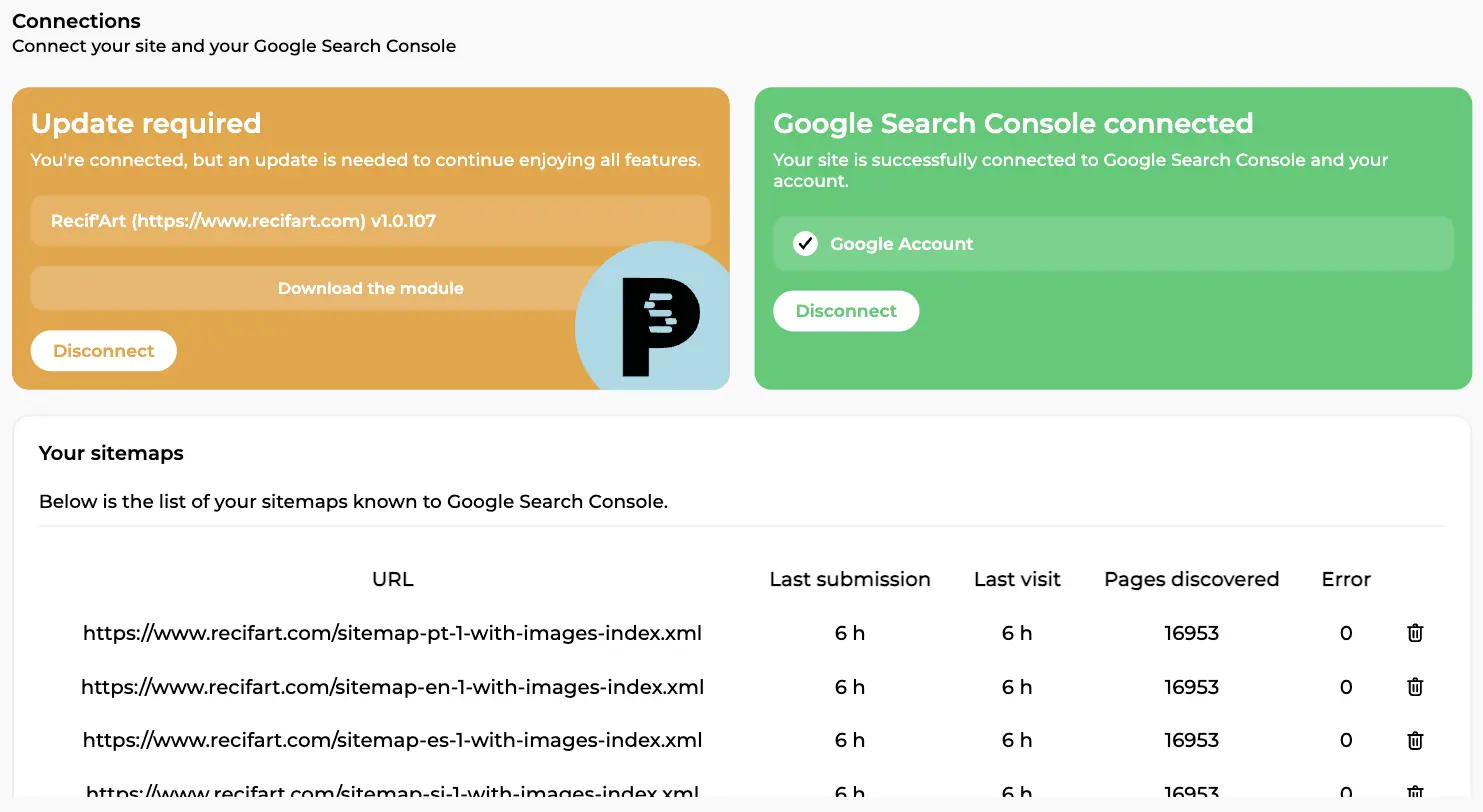
Search Console feeds SEO analytics, Rémi's content audit and Nox's indexing tracking. With a CMS module, the link is verified automatically: the module drops Google's verification file at the root of your site and the property is confirmed in seconds. You remain owner and can revoke the access at any time. New to it? Read our Google Search Console guide.
Tip: on a multilingual site, create one Sedestral site per language and include the language prefix in the URL (https://mysite.com/en). Search Console data, the technical audit and the content audit are then filtered without any regex.
Brand context, General tab: who you are
This is what every agent reads before writing a line. The General tab asks for your company name, your website, What do you sell?, your Type of activity, your Business type (B2B, B2C or Both), and a rich text field, Describe your activity, up to 800 words.
On the screenshot, the store is set to "I sell my own products" and "E-commerce", and the description was drafted automatically at creation. Treat it as a starting point: you can see it guessing the business from the domain name. Rewrite it with your real offer, audience, values and geography. It's the single most influential field for content quality.
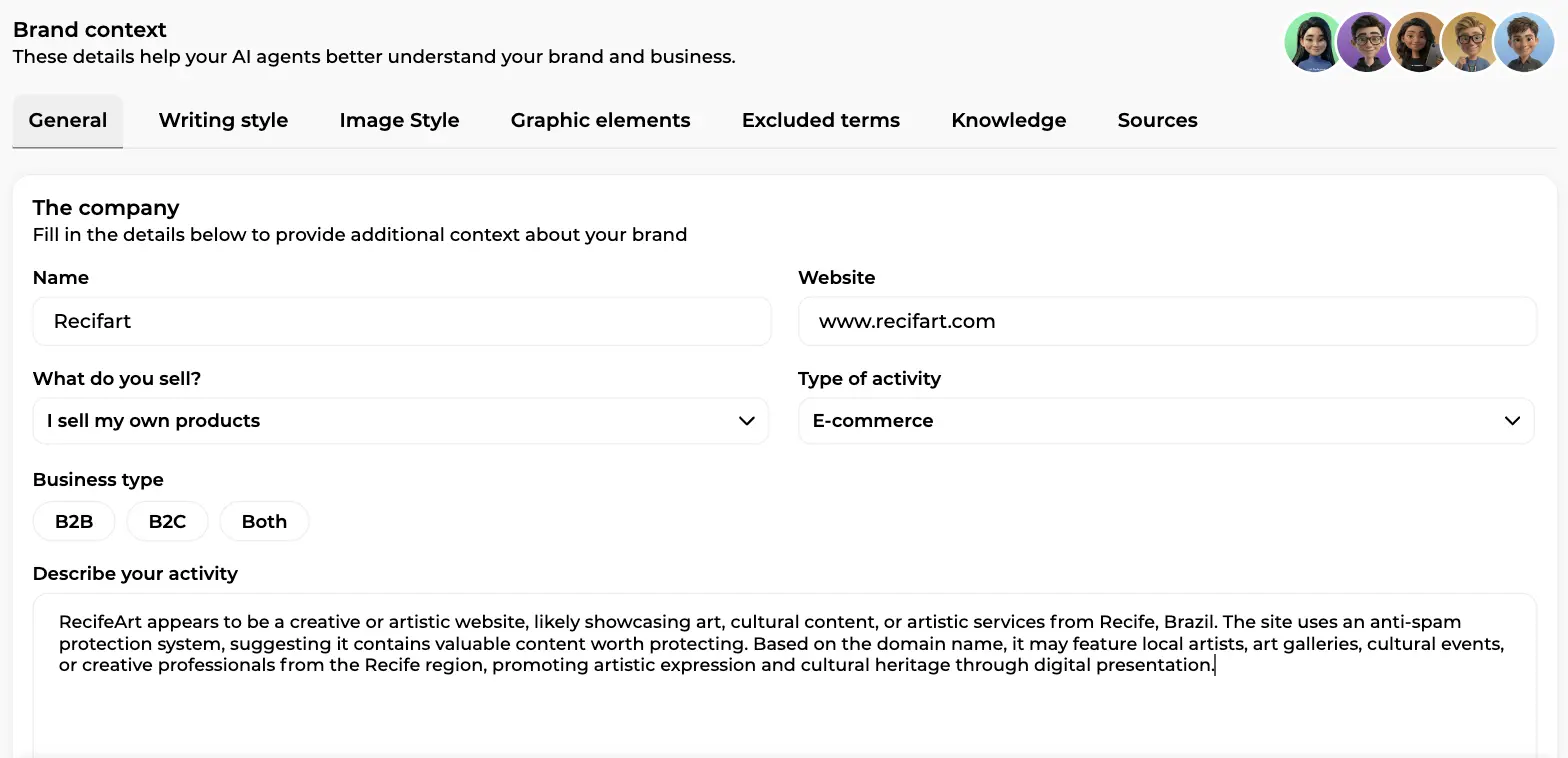
The tab bar shows the seven areas: General, Writing style, Image Style, Graphic elements, Excluded terms, Knowledge and Sources. The five avatars at the top right are your agents; all of them use what you enter here.
Excluded terms
The Excluded terms tab is a tag list: type a word, press Enter. Every term is avoided during generation and optimisation, by Alya and Rémi alike. Typical uses: competitor names, jargon, anglicisms, the clichés you hate. Do it early.
Knowledge: what your agents actually know
The activity description says what you do. The Knowledge tab holds the precise facts: product sheets, catalogues, technical guides, your values page, an internal FAQ. Each knowledge item groups up to 5 resources (web link, file or raw text, up to 35,000 characters each), marked internal (your own material, given priority) or external.
Behind the scenes, Alya searches your knowledge base on her own while writing and pulls the relevant facts into the right sections; from the editor's AI chat you can also ask her to "look into my knowledge base and complete the shipping section". The result is content a competitor can't copy, which matches what Google's guidance on helpful, people-first content asks for.
Sources: who the AI may cite
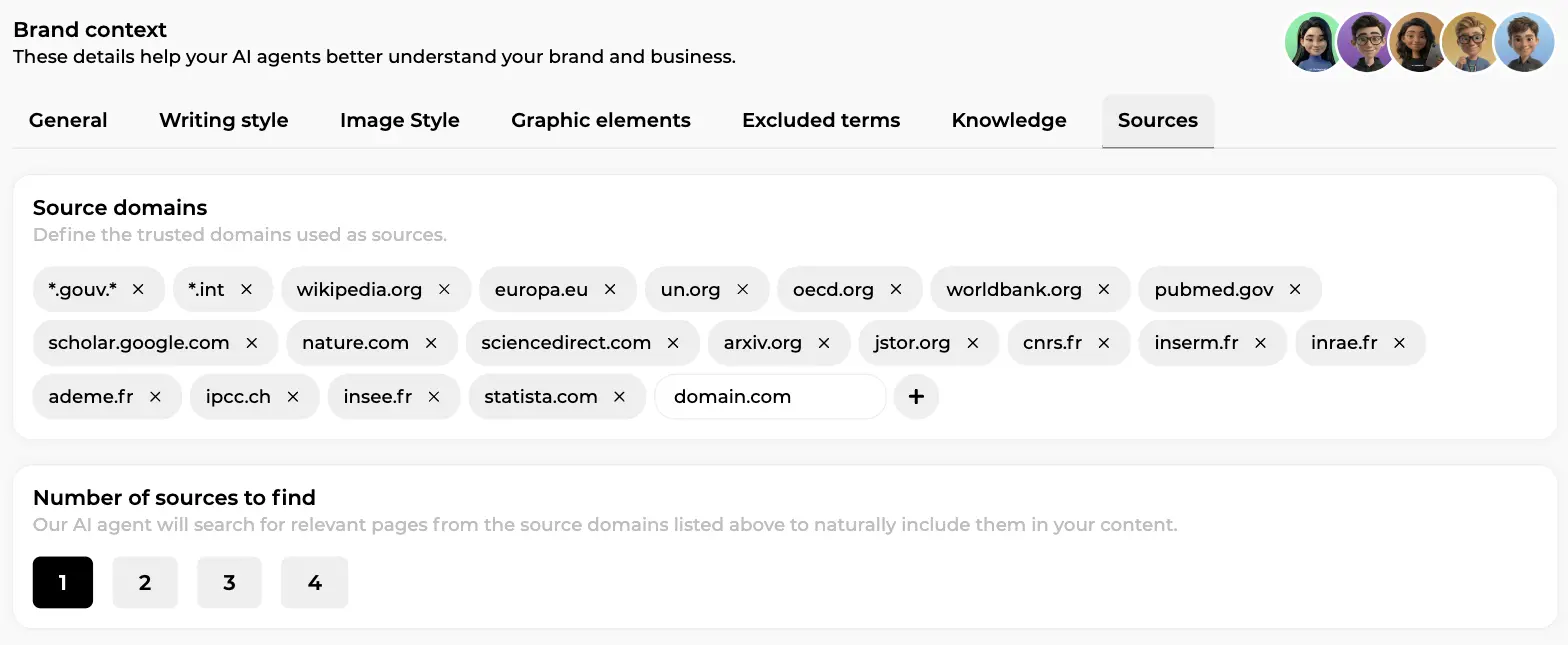
The Sources tab controls which domains Alya may link to. On the screenshot, the default list appears as removable tags: government domains, wikipedia.org, europa.eu, oecd.org, pubmed.gov, nature.com, arxiv.org, insee.fr, statista.com and so on, with a field to add your own. Below, Number of sources to find lets you pick 1 to 4 external sources per article; the agent searches those domains for relevant pages and works them naturally into the text.
Writing style: one voice per content type
Here is where AI content stops sounding like AI. The Writing style tab holds editorial guidelines the agents apply every time they write, with four sub-tabs, Blog Post, Product Page, Product Category and CMS Page, because a product description shouldn't read like a 2,000-word guide.
Two buttons sit on the right: Reset and Generate with assistant. The assistant asks about tone, register and sentence rhythm, then writes the guidelines. On screen you can read what it produced for this store's blog: a "warm cultural guide tone", signature phrases to use sparingly, a rhythm rule (short sentences alternating with medium ones), banned formulations (superlatives without evidence, filler, oral familiarity, first person singular) and an anti-repetition rule.
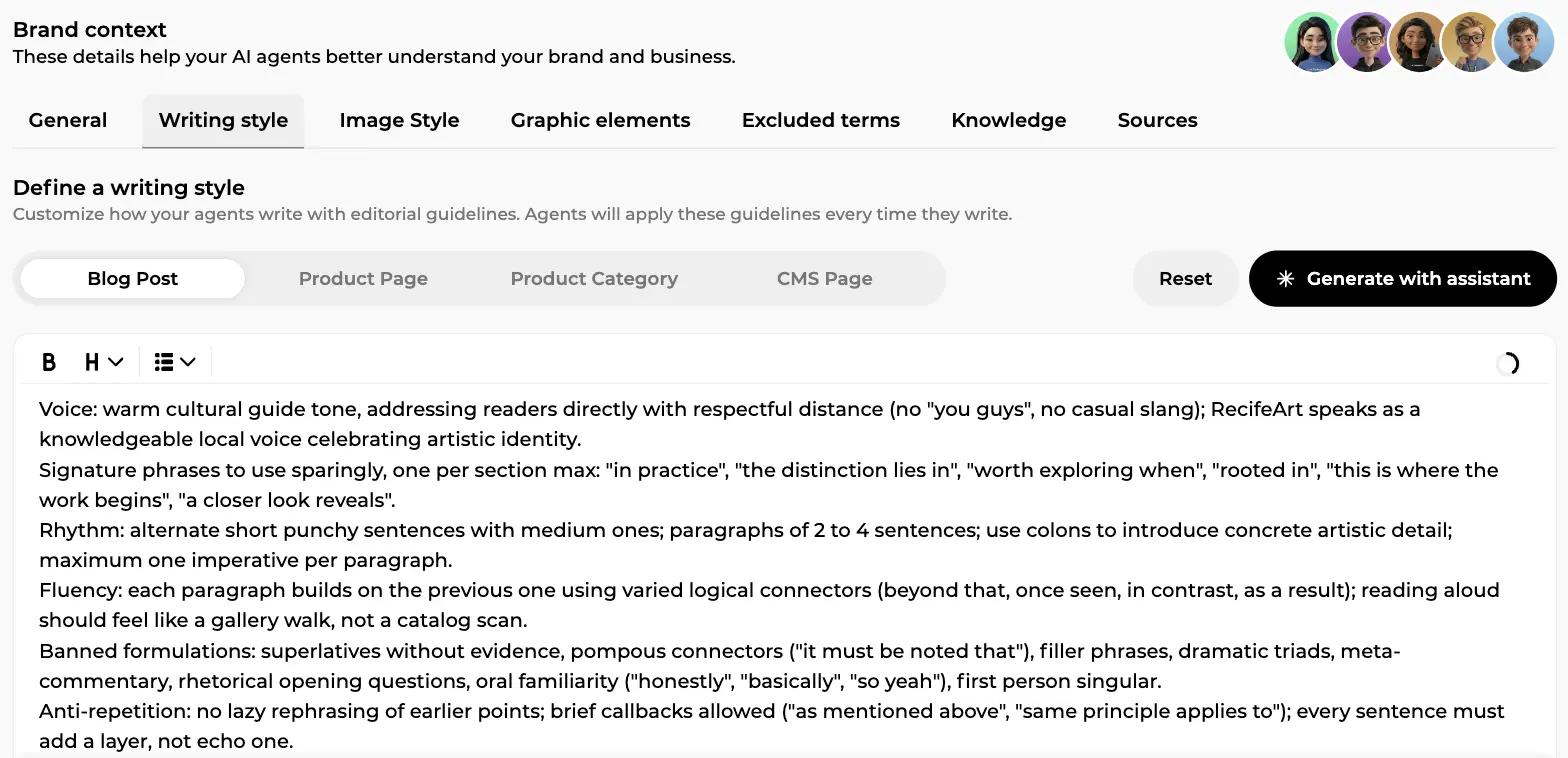
The guidelines are plain editable text, and the best results come from refining them over time: add the phrasings you like, list the ones you hate. Two shortcuts help. In the editor's AI chat, say "from now on, write shorter sentences" and the agent offers to save it for all future articles. On your first five articles, a style feedback card at the bottom of the editor collects your remarks for the next ones.
Where is the style applied? Everywhere: Alya's 7-phase writing, Rémi's rewrites, autopilot articles, even one-off manual edits. See it play out in our guide to AI article writing.
Image style: photos, illustrations and diagrams in your colours
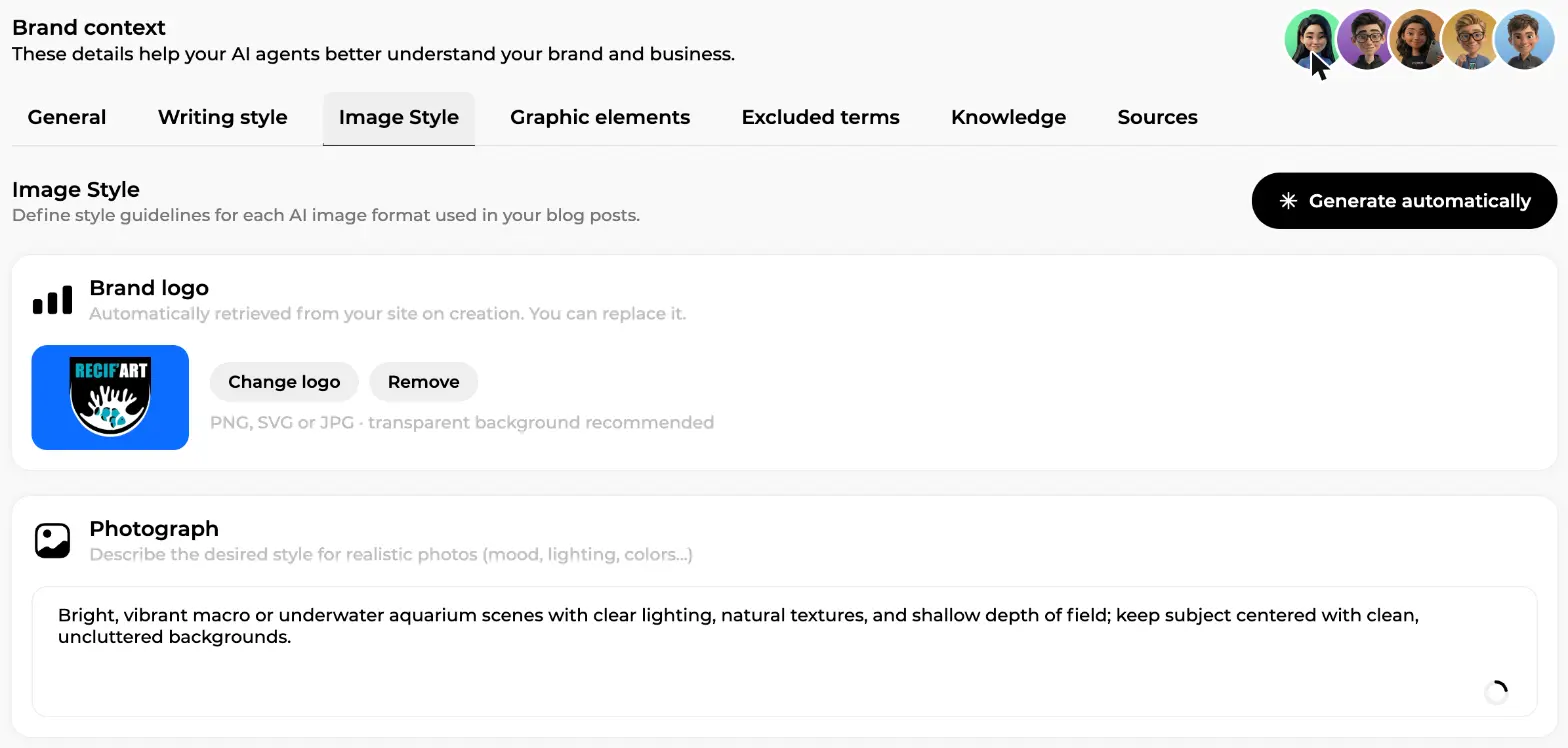
Every article gets images, and they should look like yours. When your site is created, Sedestral analyses your pages and pre-fills the Image Style tab: logo, palette and a guideline per format. The Generate automatically button reruns that analysis in 30 to 40 seconds; it overwrites what's there, so use it before your manual tweaks.
The first card is the Brand logo, retrieved from your site, with Change logo and Remove buttons. No switch to flip: once a logo is saved, it's embedded on every generated illustration and diagram. The second card, Photograph, is a free text field; here it asks for bright macro or underwater scenes, shallow depth of field and uncluttered backgrounds.
Scroll down to Illustration and Diagram. Each has its own guideline (bold flat-vector illustrations; clean cards and grid layouts for diagrams) and a three-colour palette, Primary Color, Secondary Color and Accent Color, entered as hex codes.
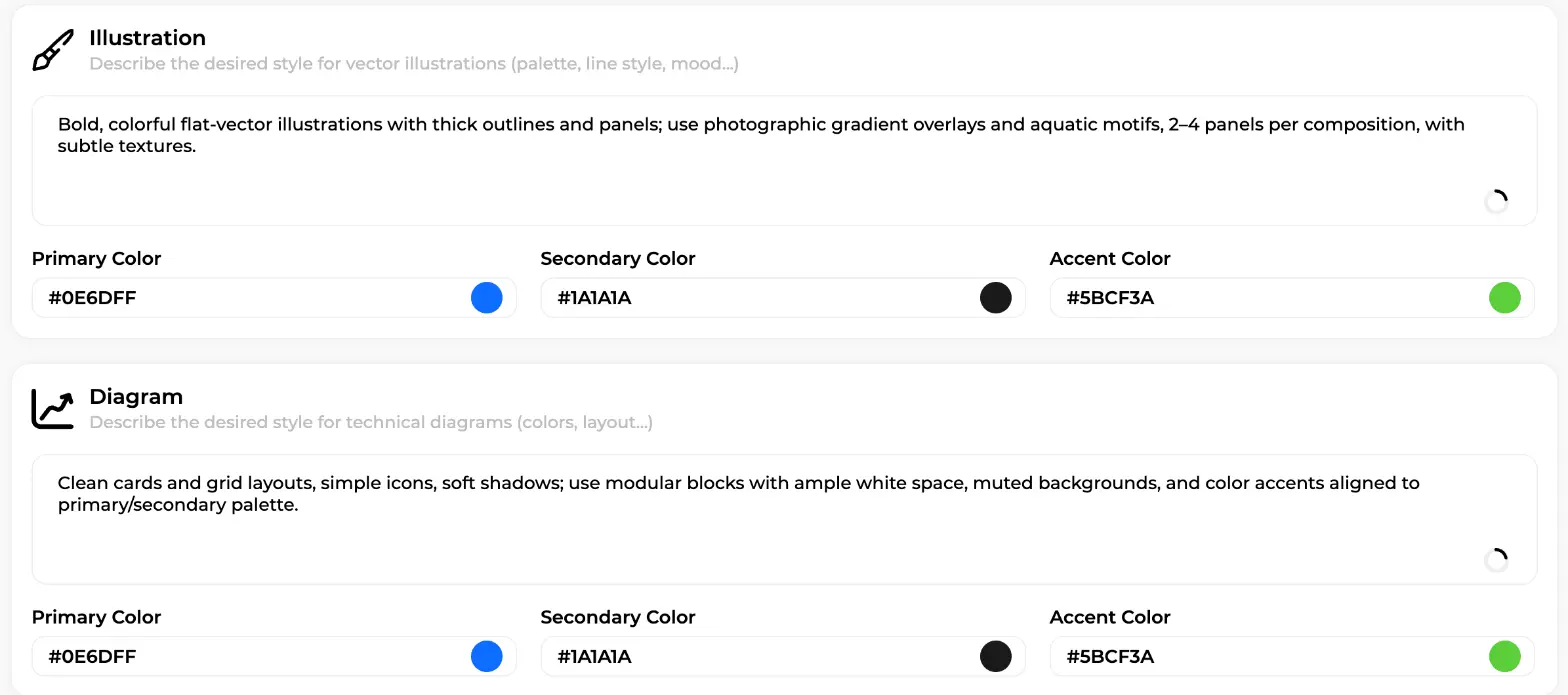
For each section the AI picks the format that fits, a photograph to show, an illustration or a diagram to explain, so an article mixes the three in a consistent landscape format, the header always a photograph. Minimum effort for maximum effect? Set the three colours.
How To Start
Get Sedestral Running on Your Site
- Connect your website or CMS (WordPress, Shopify, PrestaShop, Wix or Webflow)
- Run Nox to identify technical issues blocking your rankings
- Set up Alya with your target keywords and publishing schedule
- Activate Marc to monitor your rankings and track competitors
- Let Maya surface backlink opportunities as your authority grows
Graphic elements: reusable blocks that convert
Text and images make an article. Callouts and calls to action make it perform. Graphic elements are reusable blocks in your brand colours and logo: CTA banner, tip box, definition, pitfall to avoid, step list, key takeaways, key number, testimonial. Build them once, then insert them yourself or let the AI place them.
The library, generated for you
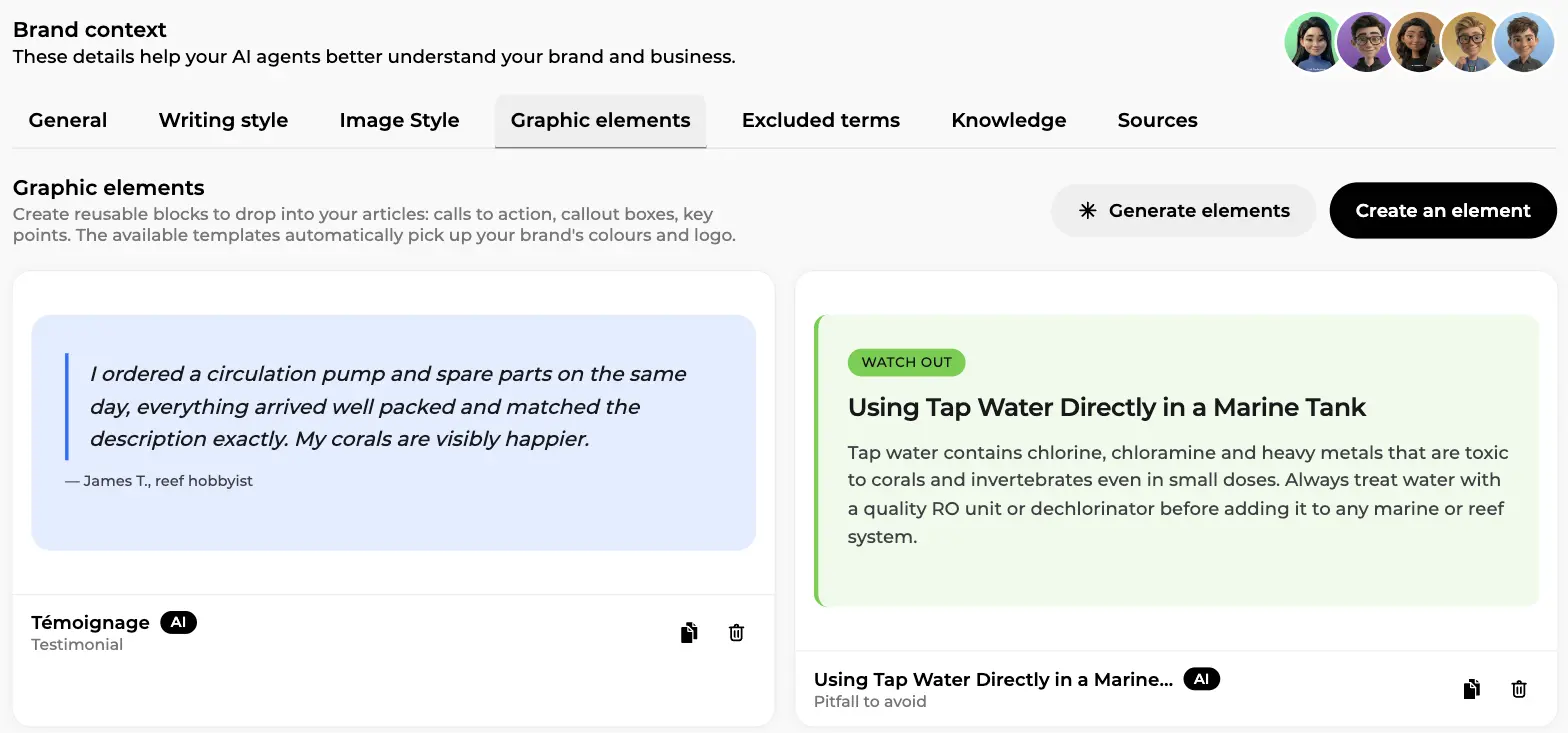
When your site is created, the AI composes a catalogue of about ten elements with texts drawn from your real business; the Generate elements button does the same on demand. Create an element opens the manual path, from a template or from scratch.
Each card is a rendered preview with name, type, an "AI" badge for generated ones, and duplicate and delete icons. The first screen shows a Testimonial and a Pitfall to avoid with a green "WATCH OUT" badge.
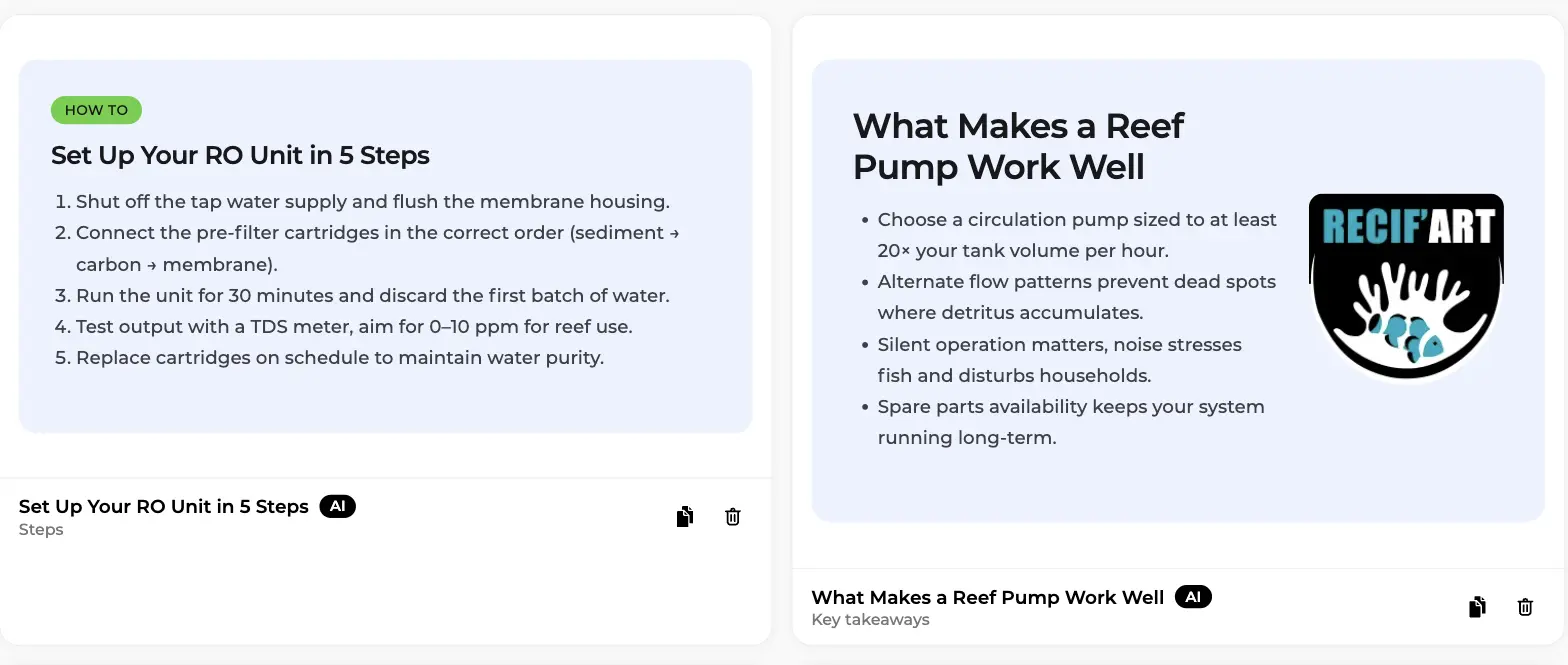
Further down, a Steps element ("HOW TO" badge, a numbered list) and a Key takeaways element with the brand logo as a side illustration. The texts are concrete and product-related.
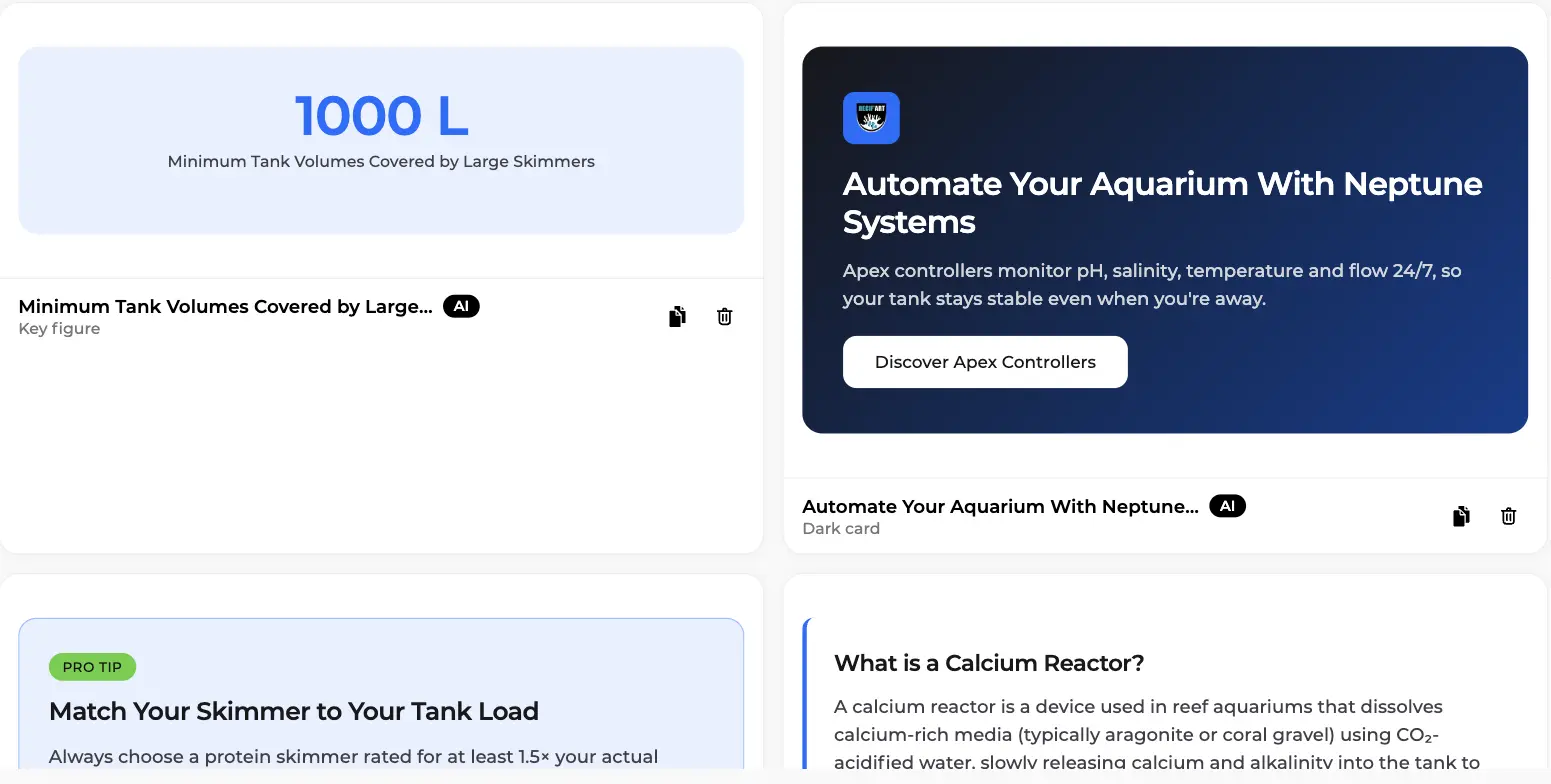
The third screen shows a Key figure (a big "1000 L"), a Dark card with logo, heading, text and a Discover Apex Controllers button, then a Pro tip box and a Definition. The dark card is the commercial one: its button points to a real page of the site, never an invented URL, and questionable statistics are banned at generation.
The builder
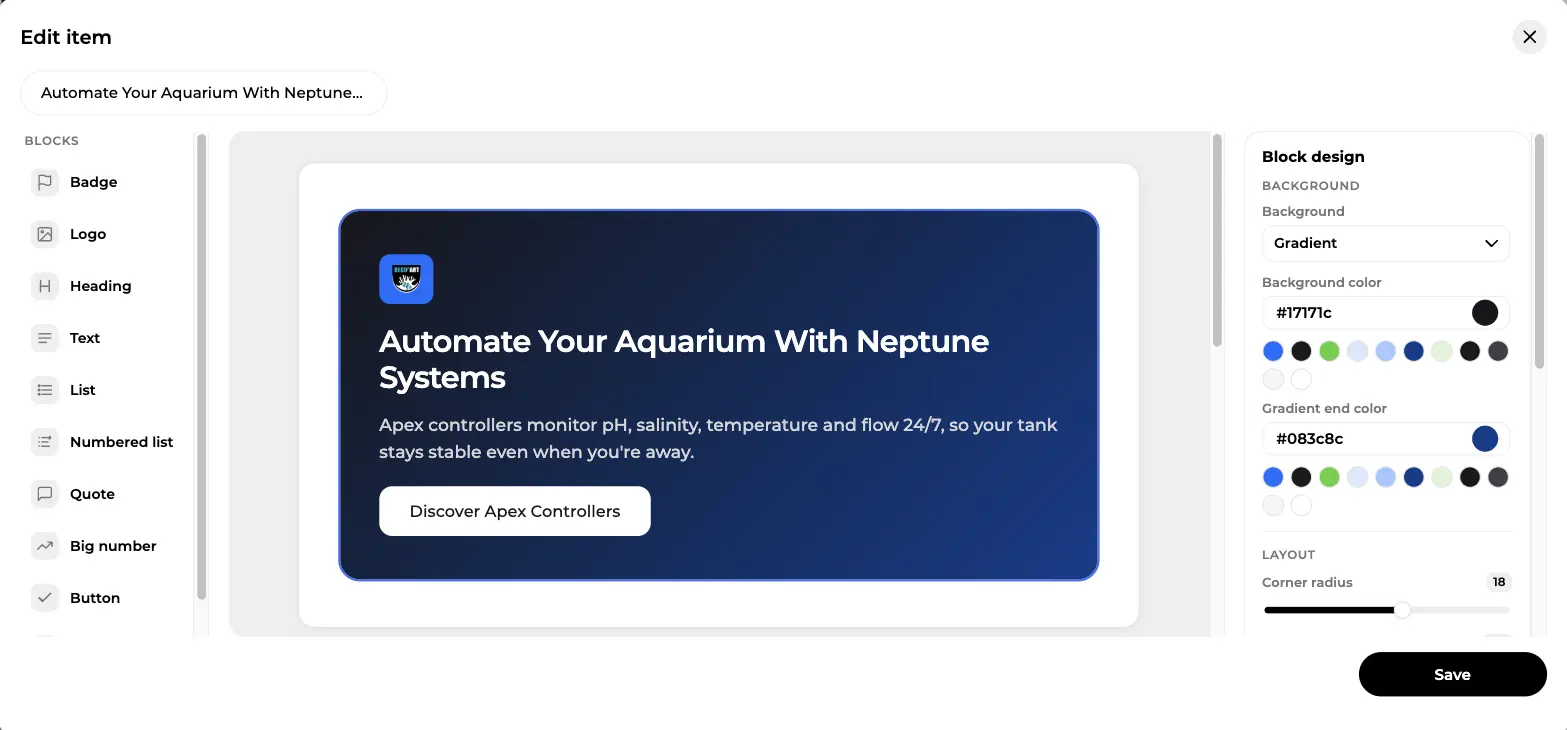
Click an element and the builder opens full screen as Edit item. Left, the Blocks palette: Badge, Logo, Heading, Text, List, Numbered list, Quote, Big number, Button, Image, ten blocks you drag into the zone and reorder. Centre, the live preview. Right, the Block design inspector: here a Gradient background with start and end colours, one-click brand swatches, and a Corner radius slider; border, spacing and a side illustration sit further down, with Save at the bottom right.
What the AI may do with each element
One question per element sets the rule:
- It inserts it as is: the AI chooses the article and the spot, your content stays untouched.
- It inserts it and adapts the texts: your texts are a template the AI rewrites for the topic. Button link, colours and images never change; an optional writing instruction guides the rewrite.
- It never inserts it: you place it yourself from the editor.
A Description and use case tells the AI which articles the block is for, and a Preferred placement (after the introduction, in the body, at the end) narrows the spot. Guardrails are strict: at most 2 elements per article, at most one commercial element with a button, never two side by side, never in the FAQ, and if nothing fits, nothing is inserted.
In the editor, a formatting bar button inserts any element at the cursor, each inserted block has an Edit button that reopens the builder for that article only, and the AI chat takes instructions like "move the promotional block to the very bottom".
Create your account and connect your site
Configuration tab: how the agents behave
The third tab, Site Settings, has three sub-tabs: Blog, Optimization and URL Groups. Each setting is a Yes/No toggle applied as soon as you save.
Blog settings
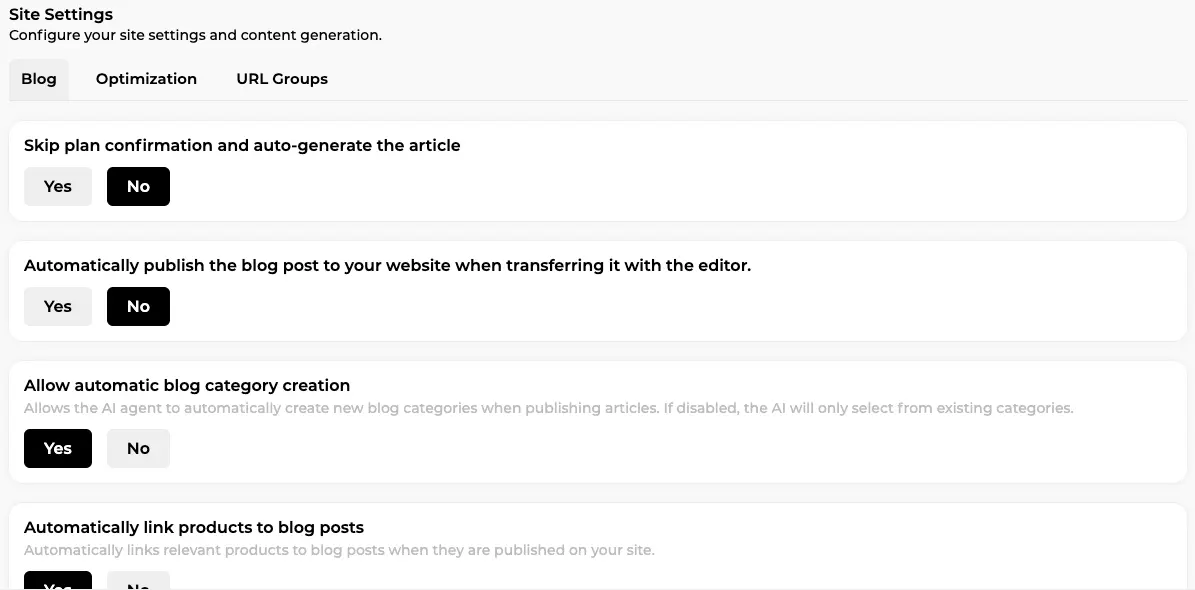
The Blog sub-tab decides how much runs on its own. On the screenshot: Skip plan confirmation and auto-generate the article (No here, so you validate the outline first), Automatically publish the blog post to your website when transferring it with the editor (No: articles land as drafts in the CMS), Allow automatic blog category creation (Yes: the AI files each article in the most relevant category and may create one), and Automatically link products to blog posts, a PrestaShop option.
Author, publication defaults and scheduling live in the same area, with a Graphic elements in articles switch to disable automatic insertion or restrict it to a subset of your library. The autopilot itself is covered in our SEO content strategy guide.
Optimization settings
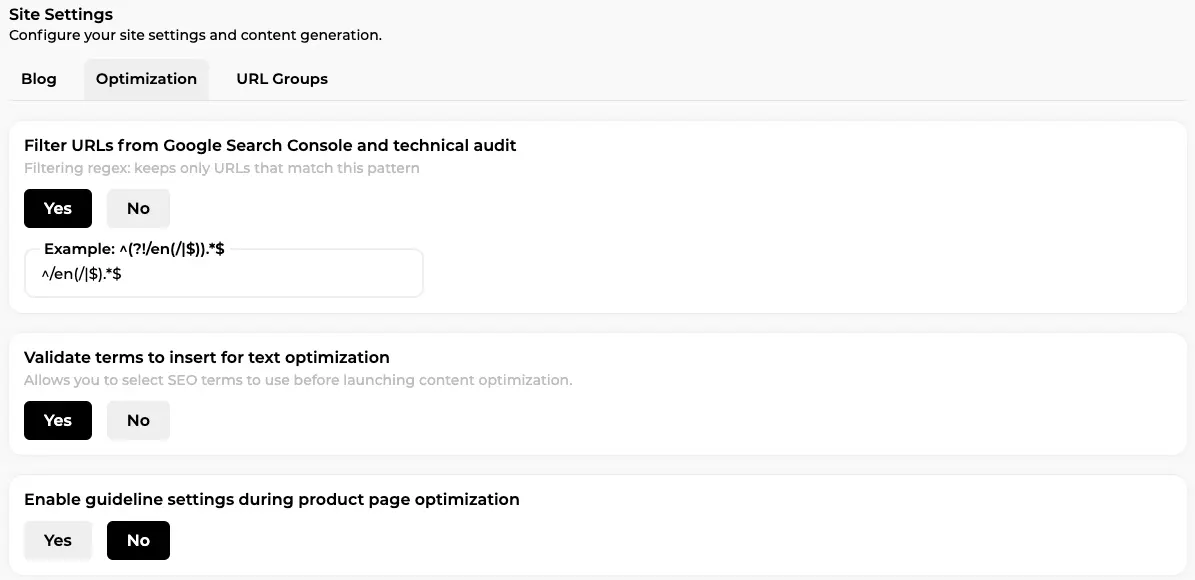
The Optimization sub-tab governs what Rémi may touch. Filter URLs from Google Search Console and technical audit is a regex; here it keeps only English pages. Validate terms to insert for text optimization (Yes: before a rewrite you tick the semantic terms Rémi may use) and Enable guideline settings during product page optimization (No: product rewrites launch directly; Yes adds a step for custom instructions and a writing style choice). The same option exists for categories, where it also enables internal linking.
Further down: the page analysis limit, the number of internal links (default 3) and external links (default 1), image rules such as WebP conversion, and the Odoo builder option. Elementor pages need no setting: Rémi rewrites the texts inside the builder data without touching the layout. See SEO content optimisation and SEO content audit.
URL groups and page types
The URL Groups sub-tab tells Sedestral which URL patterns are products, categories, blog posts or CMS pages. Nox uses these page types for standard or fast indexing rules in the technical SEO audit, Rémi to pick the right optimisation flow.
Team, roles and invitations
From your name at the bottom left, Team members shows every member with role badges and a Pending invitations section. The Invite button takes email addresses and roles and sends a "Join the team" email; a shareable link with expiry and number of uses is the alternative. Ready-made roles wait for you: Administrator, Editor, Writer (create, edit and publish), Developer (API keys, audit, connections), Reader (view only), plus a Contributor template for writing without publishing. Custom roles set content access by level, and in a multi-site workspace you can restrict a collaborator to certain sites: handy for agencies and multilingual teams.
Content export and Google and AI disclosure
When automatic transfer isn't available (a Divi page, an unsupported CMS), the editor's Export menu gives you title, description and slug, plus Copy HTML, Download as .html and Download as .json. Nothing you create is locked in.
Does Google punish AI content? No. It penalises low-quality content whoever wrote it, and rewards experience, expertise, authority and trust. That's why this screen exists: your description, knowledge, sources, style and visuals turn a fluent text into a page that reads as yours. Disclosure options for Google and AI content are there if you want them.
In short
- Connections: CMS module and Google Search Console, once.
- General, Excluded terms, Knowledge, Sources: describe your business, ban words, feed your documents, choose who the AI may cite.
- Writing style: one style per content type, drafted by the assistant, refined by you, applied everywhere.
- Image style: logo, photo, illustration and diagram guidelines in your colours.
- Graphic elements: a branded library, a builder, a per-element rule with hard limits.
- Configuration: blog and optimisation toggles, URL groups, team, export.
Half an hour of setup, then the whole AI SEO team works in your voice. Not a bad trade.

Rank Higher Without the Manual Work
From technical audits with Nox to competitor monitoring with Marc, Sedestral's AI agents cover every layer of SEO so your team doesn't have to.